Home / Docs Center / Product Datasheets / 26-Channel Video Encoder
26-Channel Video Encoder
Project: Product Datasheet | page_id: 149
| 26-channel Video Encoder | |
|---|---|
| Model | XSWTVR-80M26CH/E updated to new model XSWTVR-80M4KCH/EL |
| Network Device Discovery | ONVIF |
| Network Video Input Protocol | HTTP/RTSP/RTMP/RTP/UDP-TS |
| Network Video Output Protocol | HTTP-FLV/RTSP/RTMP/UDP-TS/HLS/WS-FLV/WS-RAW/ONVIF/GB28181 |
| Input Video Encoding Format | H.264/H.265 |
| Input Audio Encoding Format | AAC/G.711 |
| Output Video Encoding Format | H.264/H.265 |
| Output Audio Encoding Format | AAC |
| Max Network Video Channels | 26 |
| Video Re-encoding Capability | 2 channels 1080P30 |
| Max Total Bitrate | 80Mbit (the actual value varies with the protocol and encoding format) |
| Recording | Supports 1 hard disk up to 16T |
| Remote Upgrade | Supported |
| Remote Management | Supports remote modification of device parameters and remote playback of device recordings |
| Dimensions | 270x216x45mm |
| Weight | 1051g |
| Power Supply | DC-12V |
| Operating Temperature | 0~70℃ |
New model link:
docs.html
Product Images
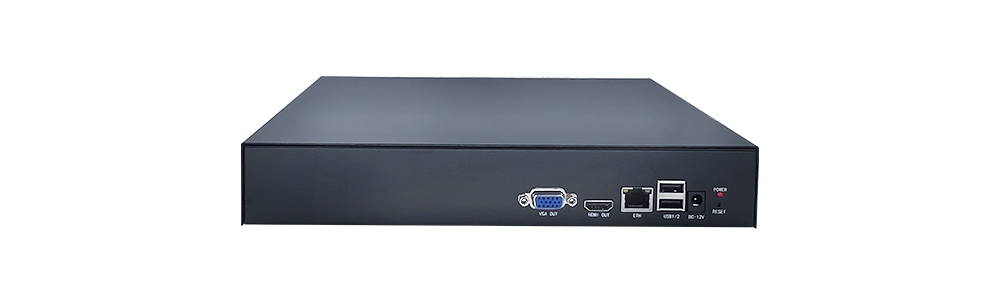
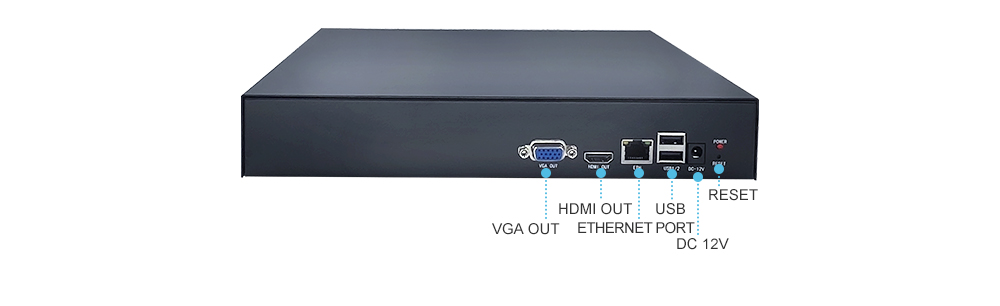
Product Manual Link (Chinese)
In-site Docs Center
Video Encoder FAQ and Troubleshooting
In-site Docs Center
Device FAQ
| Question | Answer |
|---|---|
| 1. Does "transcoding stream" mean changing the resolution? | Yes, and H.264 and H.265 can also be converted to each other. |
| 2. The IPC main stream stays at 2560x1440 and I want to transcode RTSP to 720p | The 26-channel model supports 1080p to 720p transcoding by default. For 4MP to 720p the firmware must be modified separately and customization is required. |
| 3. Besides RTMP, can the output be multicast? | Multicast output is supported; it is in Advanced Settings. |
| 4. Can multiple video channels be combined into one output? | Yes, 4 video channels can be combined into 1 output. |
| 5. How do I combine channels 1 to 4 into a quad-screen image and then stream it? | Pull streams from the first four channels first. The first four channels support only 720P to 640. Set the camera resolution to 720, enable transcoding in Advanced, and once the four channels are configured, channel 5 automatically combines them into a quad-screen. |
| 6. How many transcoding streams are supported when all channels are in use? | 2 channels of 1080P transcoding are supported. |
| 7. Can the encoding format be customized? We have a custom encoding, not H.264/H.265 | H.264 or H.265; custom encodings are not supported. |
| 8. Is ffmpeg invocation supported? | Yes. |
| 9. What type is the main board? ARM or AMD/Intel? | ARM. |
| 10. Can automatic rotation playback be implemented? | Not at present; this function can be customized. |
| 11. Can H.264 be converted to H.265? Can the bitrate be kept the same before and after transcoding? | Yes, H.264 and H.265 can be converted to each other. The bitrate can be kept the same before and after transcoding. |
| 12. Is local video transcoding supported? | Yes. |
| 13. What is the maximum input resolution supported for transcoding? | Without transcoding, the input resolution is not limited. If transcoding is required, 2 channels of 1080P30 or 1 channel of 1080P60 input is supported.) |
Video Encoder Product UI_Channel Settings
Video Encoder Network Configuration_Recording Playback
Video Encoder. Password Change_API Authentication
Video Encoder webrtc_Login Configuration
Introduction to Various Video Pull Protocols of the Video Encoder
Introduction to Various Video Protocol Outputs of the Video Encoder
Video Encoder Status Overview and Channel Settings (including how to add a camera)
Introduction to the Video Encoder Scheduled Streaming Function
Introduction to Video Encoder Advanced Network Settings
Introduction to Video Encoder Recording, Scheduled Recording, Recording Playback and Download
Introduction to Video Encoder Audio Settings
Introduction to the Video Encoder Multi-screen Live Function
Introduction to Quick LAN Video Playback
Introduction to Video Encoder Backup and Restore
Video Encoder Serial Port Transparent Transmission and GPS File Download
Didn't find what you need?Contact us,Talk to our engineers directly.