GB28181ServerManual
Project: Device User Guide | page_id: 144
GB28181 Server User Manual
First Use
Use the Device Search Assistant to search for and modify the device IP. Note that the PC and the device must be connected to the same switch/router. If the device cannot be found, tick the "force search" option in the Device Search Assistant.
1 System
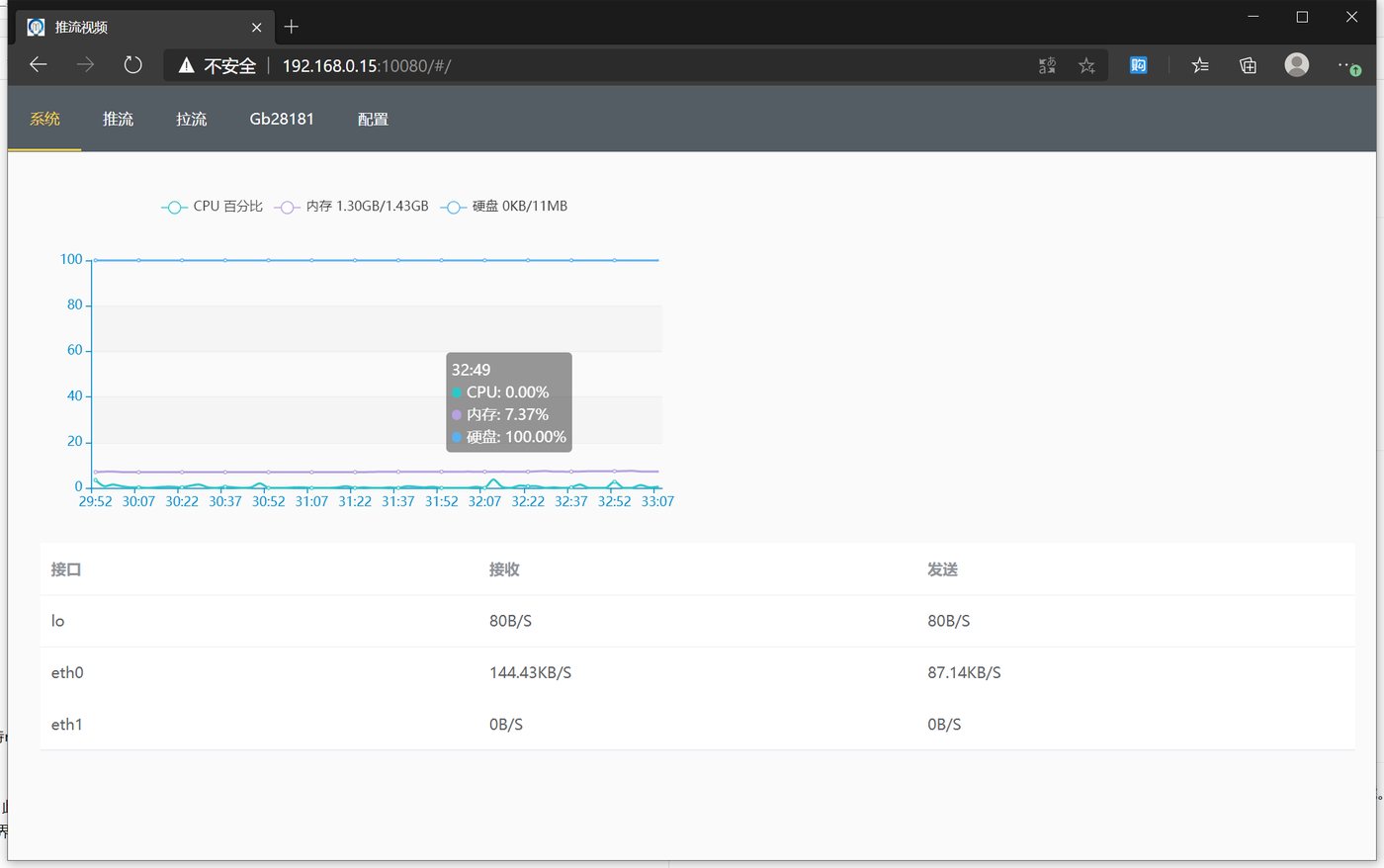
The system page shows the operating status of the GB28181 server, including CPU, memory and disk usage, and network interface send/receive traffic.
2 GB28181
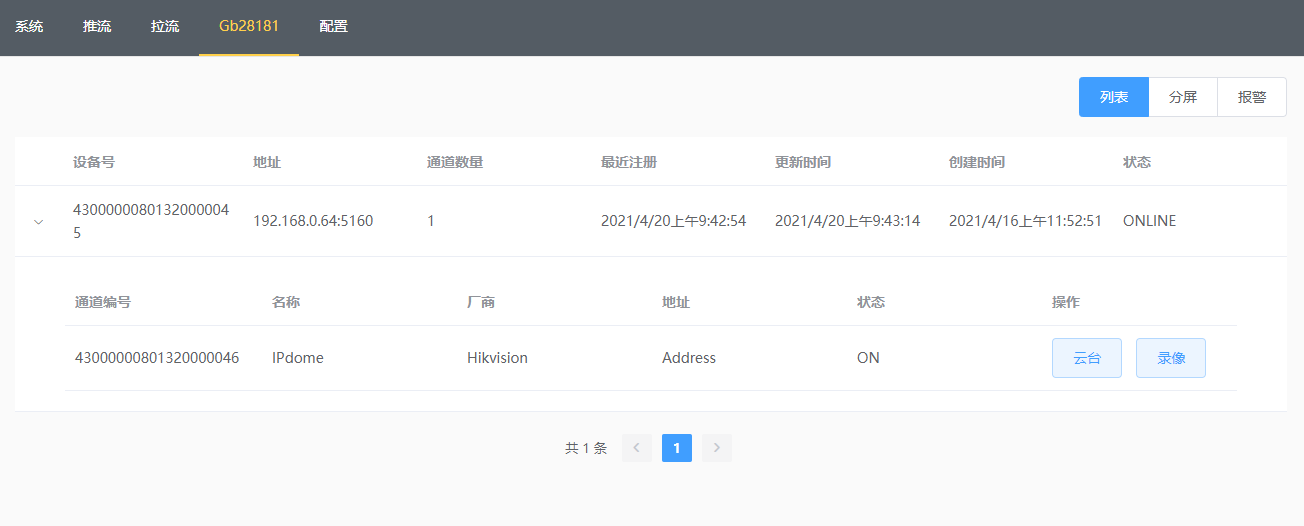
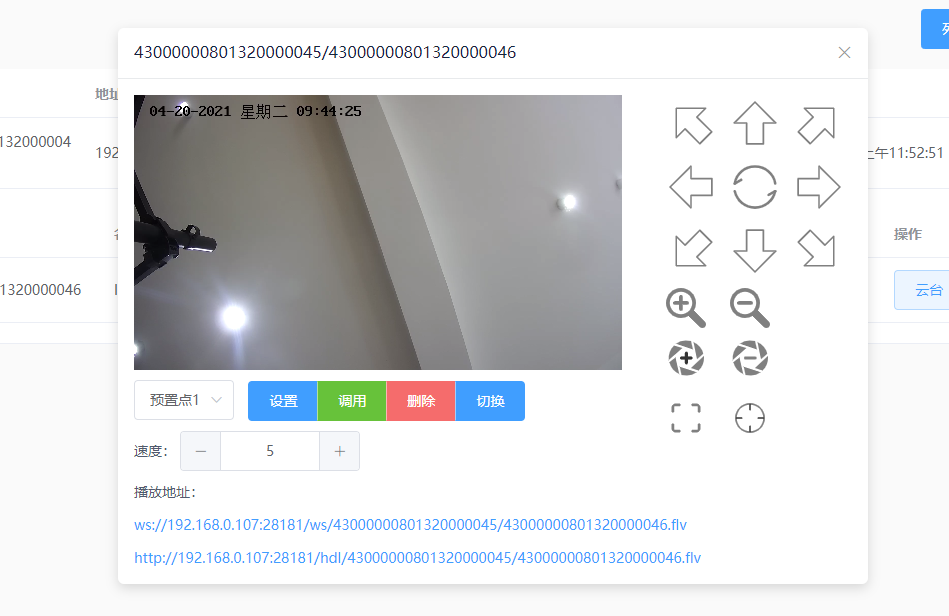
- GB28181 supports video playback, recording playback and PTZ control. Select the device number and channel number you want to view and click Connect (the new version supports on-demand streaming, so there is no need to establish or disconnect the connection manually). After the connection succeeds, the PTZ button appears; click the PTZ button for live preview and PTZ operation. Click Disconnect after the operation to release the client.
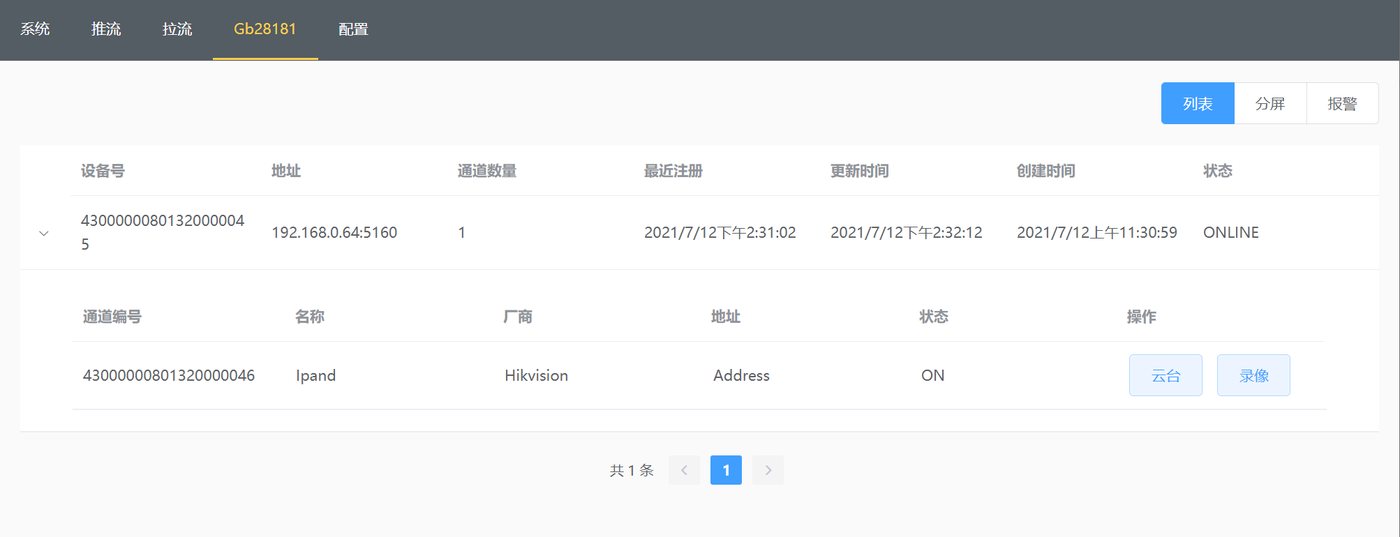
- GB28181 supports recording viewing, fast forward, download and other functions
- GB28181 supports alarm information query and merging of identical alarms
3. Camera Settings
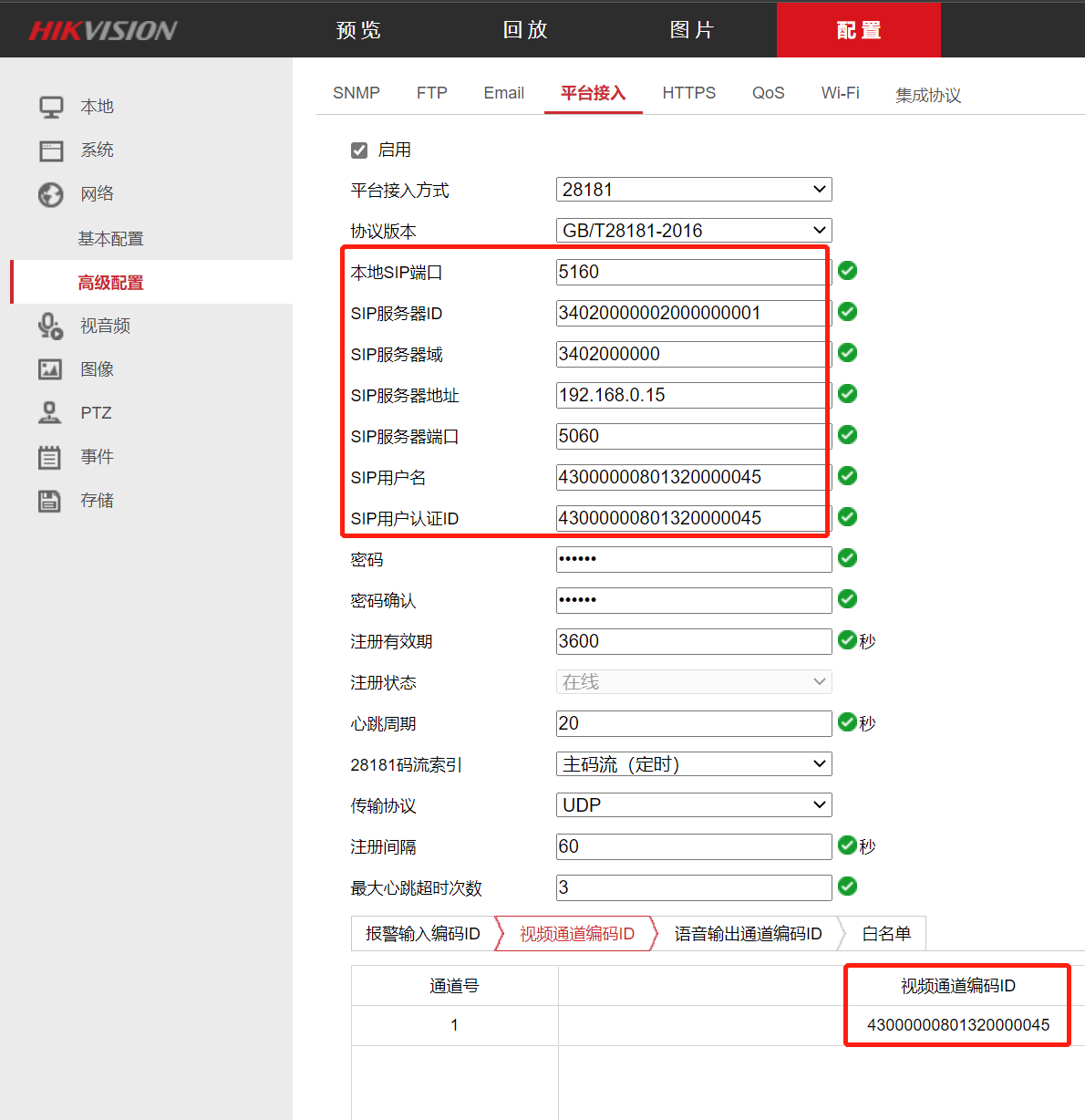
Camera settings, taking Hikvision as an example. The settings page is as follows:
The user only needs to set the parameters in the red box. The SIP server ID and server address can be obtained from the configuration page.
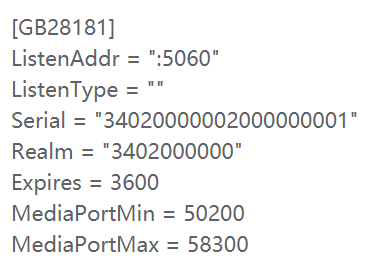
Where Serial = "34020000002000000001" is the SIP server ID, Realm = "3402000000" is the SIP server domain, and the SIP server IP is the IP of the server itself.
The SIP username and SIP authentication ID are set by the customer according to the GB28181 protocol specification.
The video channel encoding ID is also set by the customer according to the GB28181 protocol specification.
Currently the GB28181 server does not support authentication, so the password and password confirmation can be left empty.
Hikvision camera settings page as follows
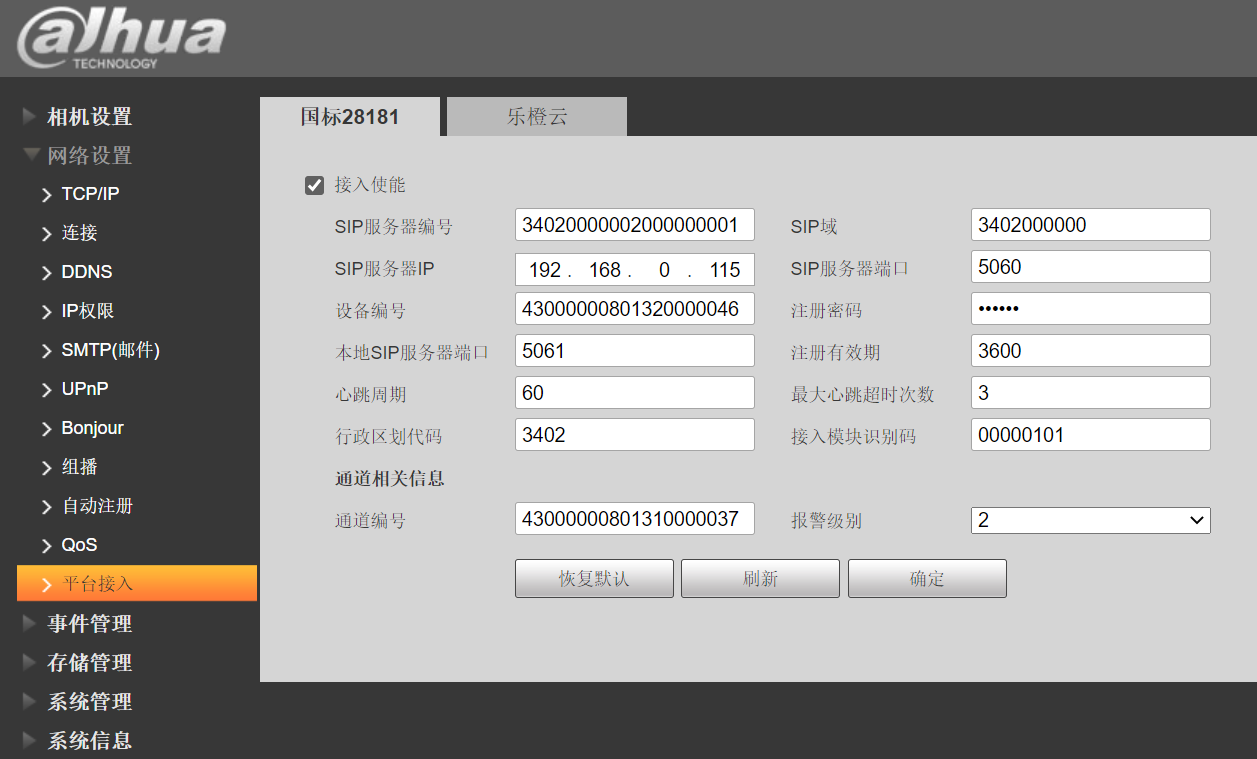
Dahua camera settings page as follows:
Yushi camera settings page as follows:
!
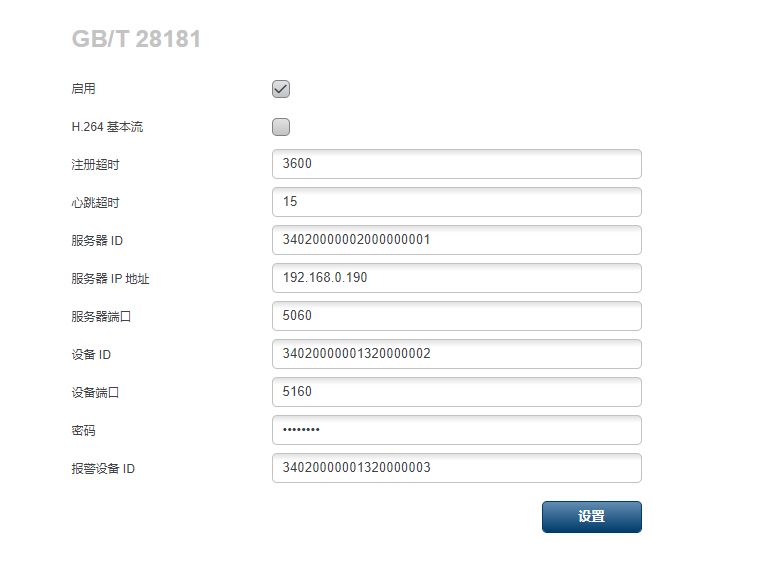
BOSCH camera settings page as follows:
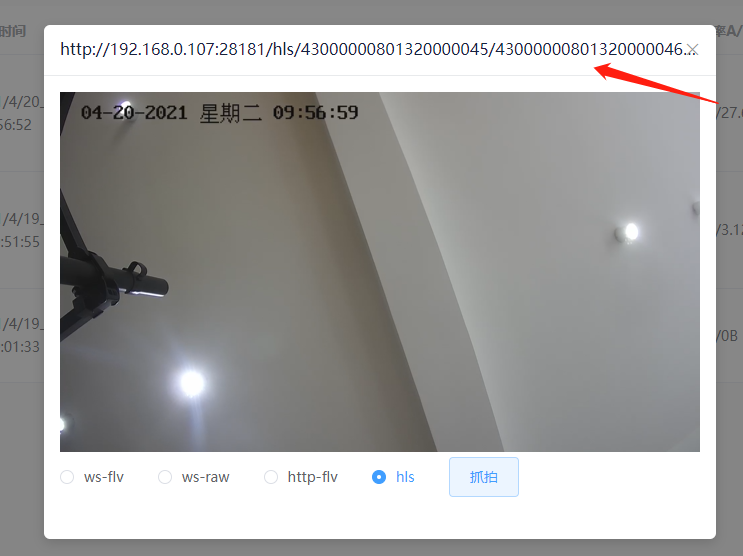
4. On-demand Streaming Video Addresses
- hls:
http://192.168.0.107/hls/43000000801320000045/43000000801320000046/index.m3u8 - ws-flv:
ws://192.168.0.107/ws/43000000801320000045/43000000801320000046.flv - http-flv:
http://192.168.0.107/hdl/43000000801320000045/43000000801320000046.flv -
rtmp:
rtmp://192.168.0.107:1935/43000000801320000045/43000000801320000046Live stream access format reference:
【http://192.168.0.107】【hls/ws/hdl/(not needed for rtmp)】device number/channel number(/index.m3u8/.flv/.flv)
For the specific access address, refer to the addresses on the [PTZ] page and the [Streaming] page.
5. GB28181 Integration API Documentation
Click API Documentation to view
6. Notes
- The old video format supports h264; the latest version 1.8 already supports h265
- Make sure the bandwidth is sufficient, otherwise the streaming service cannot pull the stream or the video playback will show artifacts
- The old playback page does not support audio; the latest version 1.8 already supports AAC and G711