Home / Docs Center / Device User Guides / GBCascadeGatewayUser Guide
GBCascadeGatewayUser Guide
Project: Device User Guide | page_id: 1341
[TOC]
1. Packing List
Device x1, power supply x1, user manual x1 (Note: all products only provide an electronic version of the user manual)
2. Product Application
The WVP-GB28181 platform supports the GB28181 cascade function, which is mainly used to build multi-level video surveillance systems and achieve interconnection between different platforms.
It handles core functions such as device access, user management and recording storage, and can connect multiple lower-level platforms.
3. Device Introduction
Supports multi-level platform interconnection and cross-network video preview. The following are its core functions and device access features:
Supports cascading between upper-level and lower-level platforms. The upper-level platform can view the channels and recordings reported by the lower-level platform, achieving interconnection between multi-level platforms.
After the upper-level platform configures the lower-level push information, video access and control can be successfully achieved, and there is no limit on the number of channels.
4. First Use
Connect the device to the power supply, network cable, keyboard, mouse and monitor. You need to modify the IP address; contact customer service for the link with the specific operations
5. Logging In to the Device
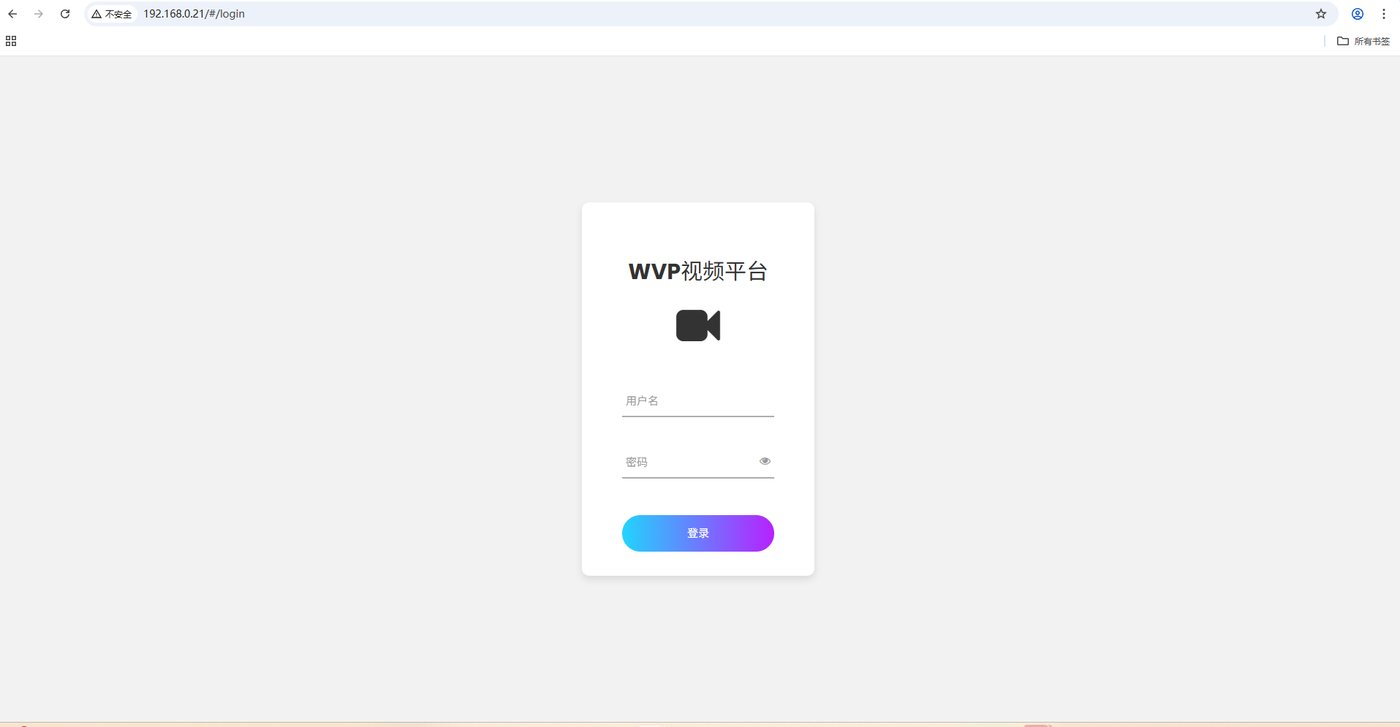
The default device account and password are admin
6. Console
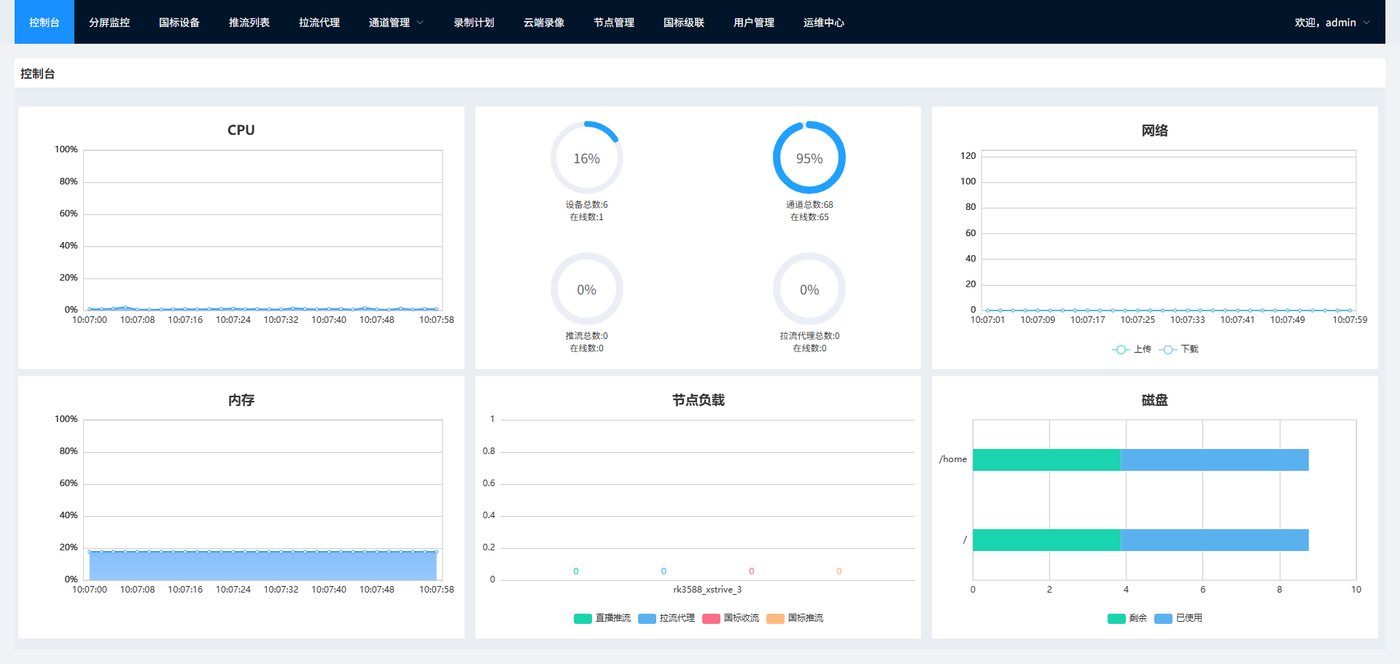
You can view the device CPU usage, the total number of connected channels and online channels of the device, and the number of push streams
7. GB28181 Devices
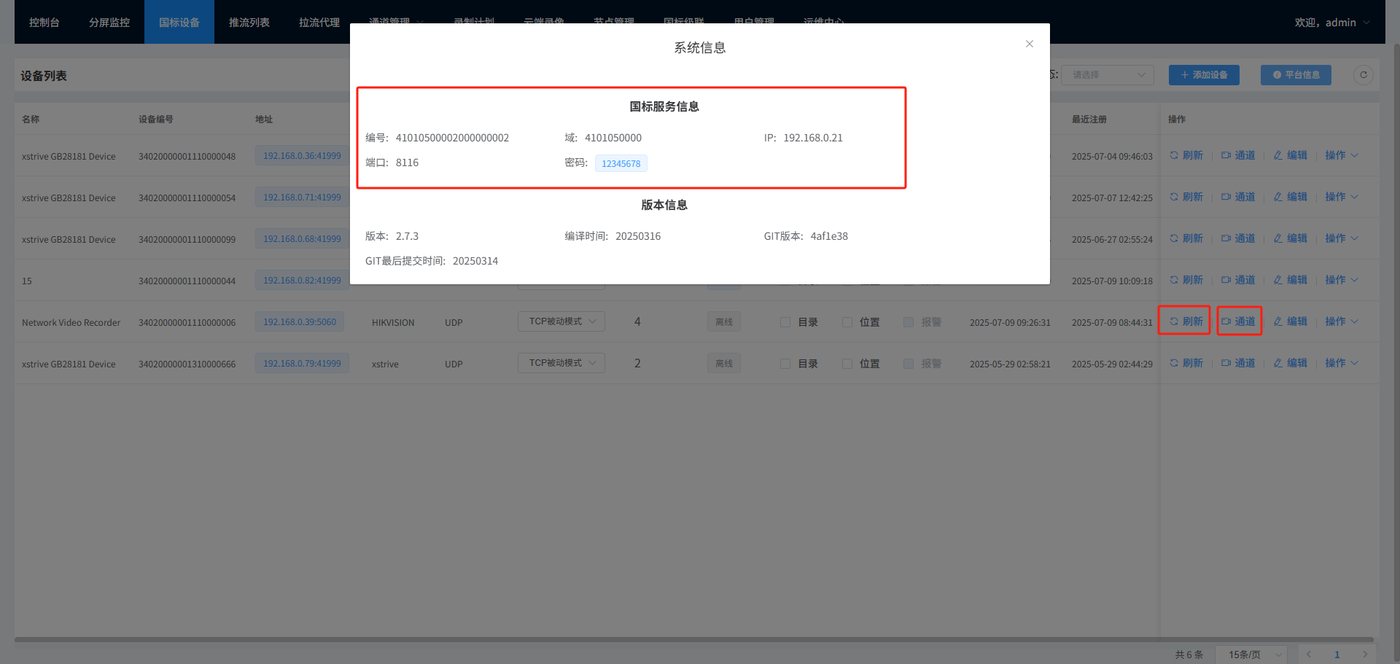
The platform information in the upper right corner shows the GB28181 server information of the device, which is the information that other devices need to fill in when connecting
After the device is registered successfully it will be shown as online; refresh first, then click channel and play to watch
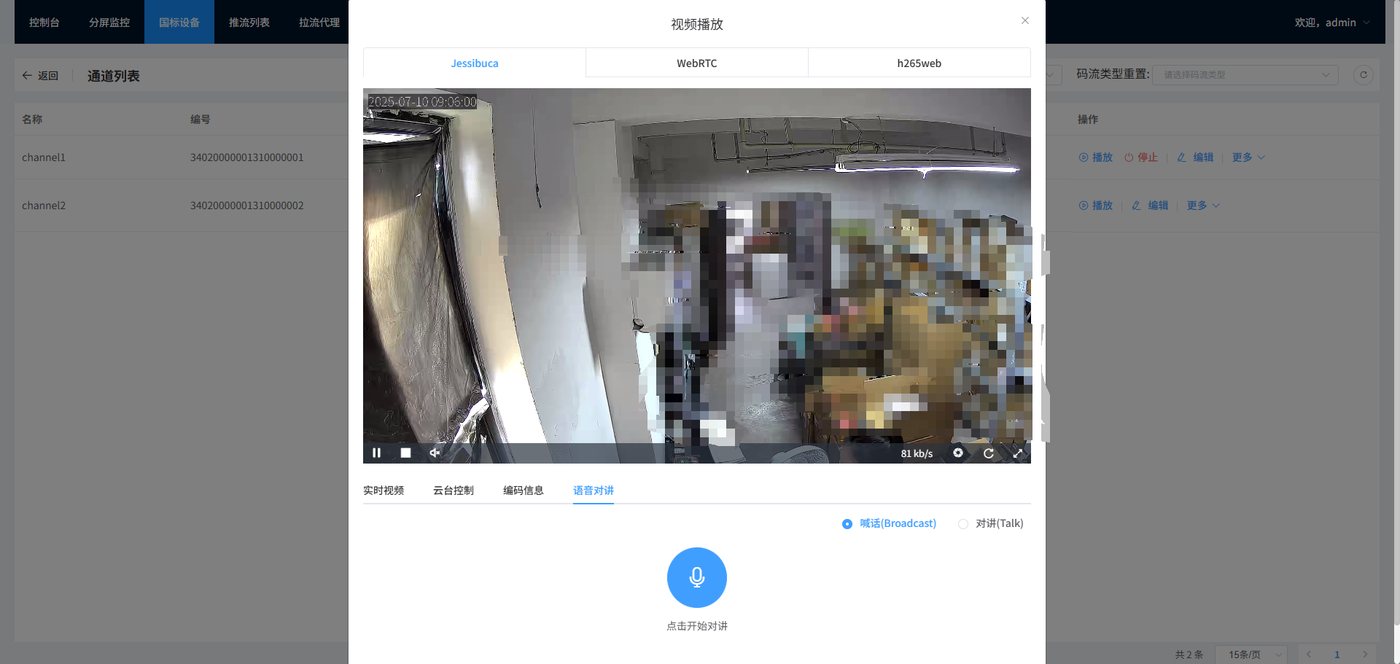
Live video shows the video playback address. The video source address supports multiple protocols, and supports PTZ control and voice intercom (the camera must support PTZ and intercom)
8. Channel Management
Group and manage the connected devices
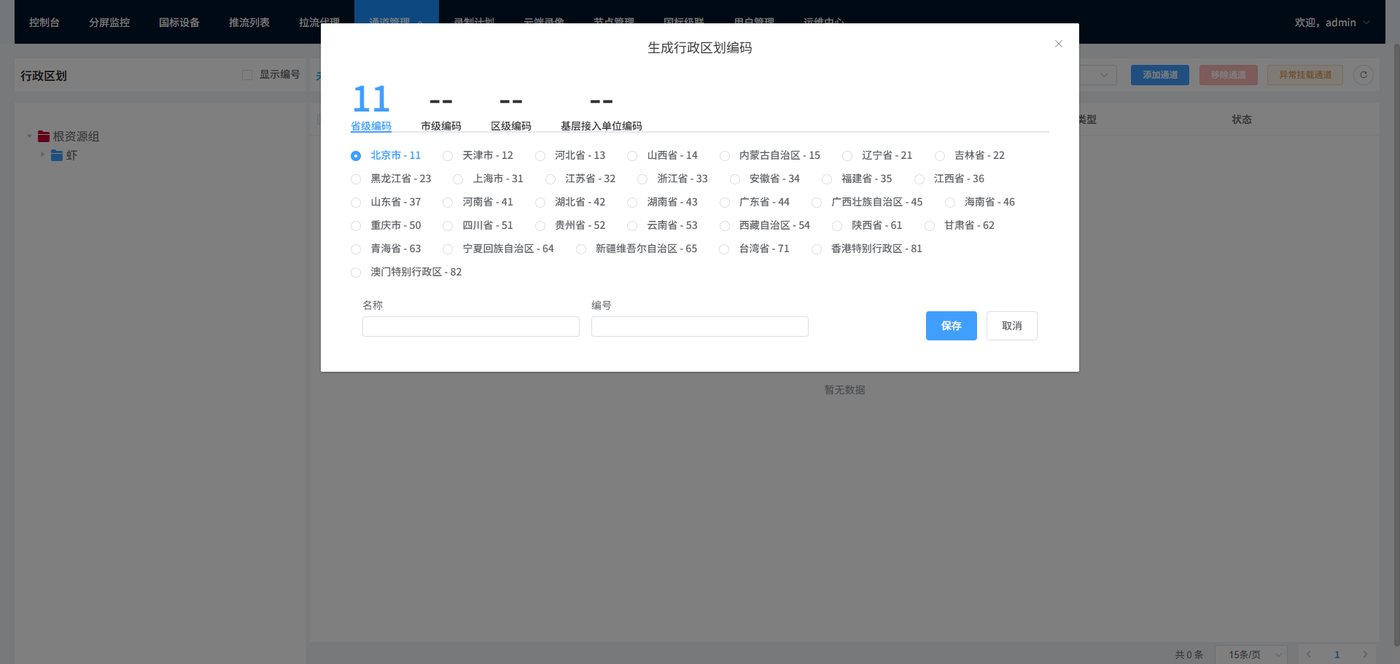
In channel management, select the administrative division, create a new node under the root resource group, and select the code according to the region. After completion, click Add Channel in the upper right corner and select the devices to be grouped
9. Split-Screen Monitoring
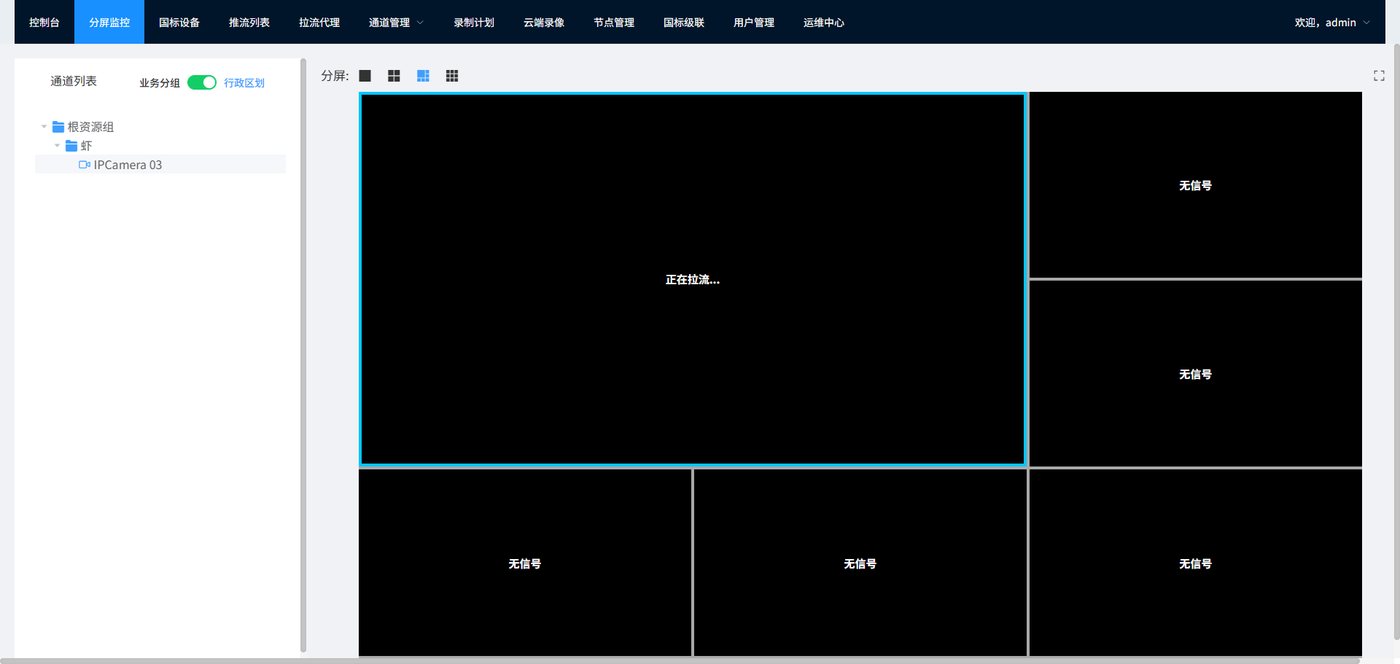
Before using split-screen monitoring, you need to perform grouping in channel management first
10. GB28181 Cascading
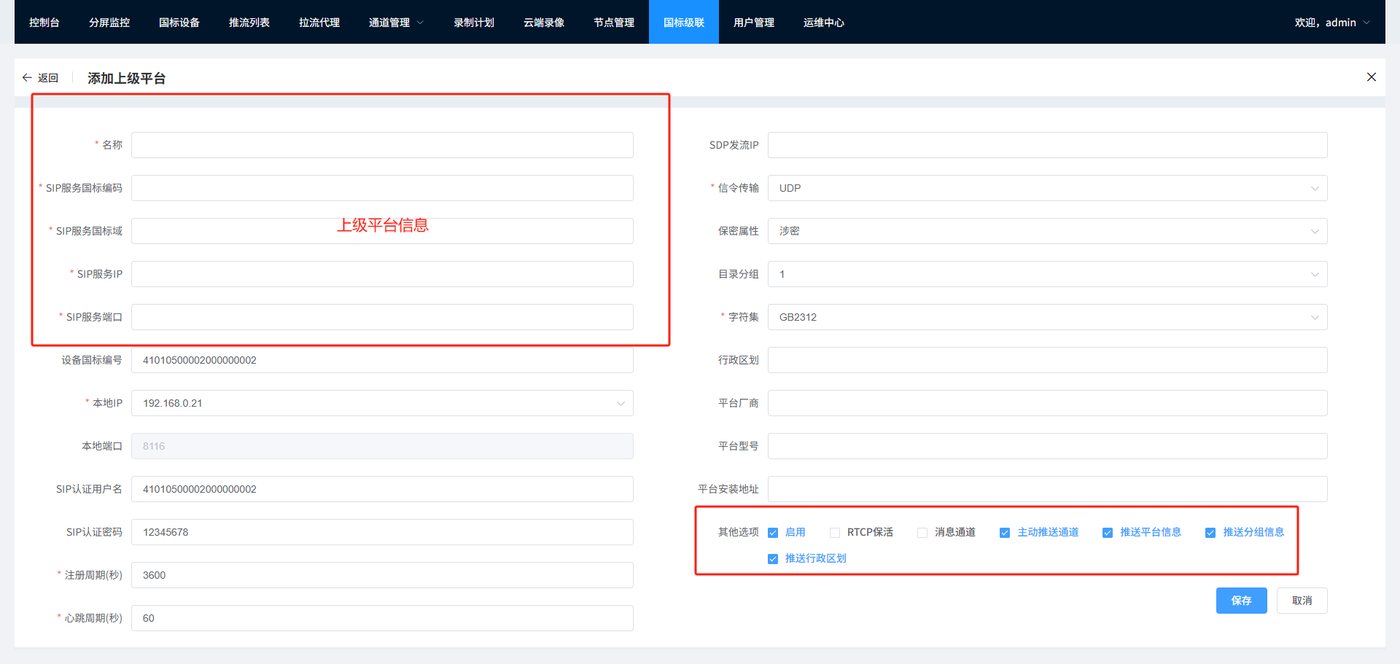
You need to fill in the upper-level platform information, and for push groups you need to check the push group option
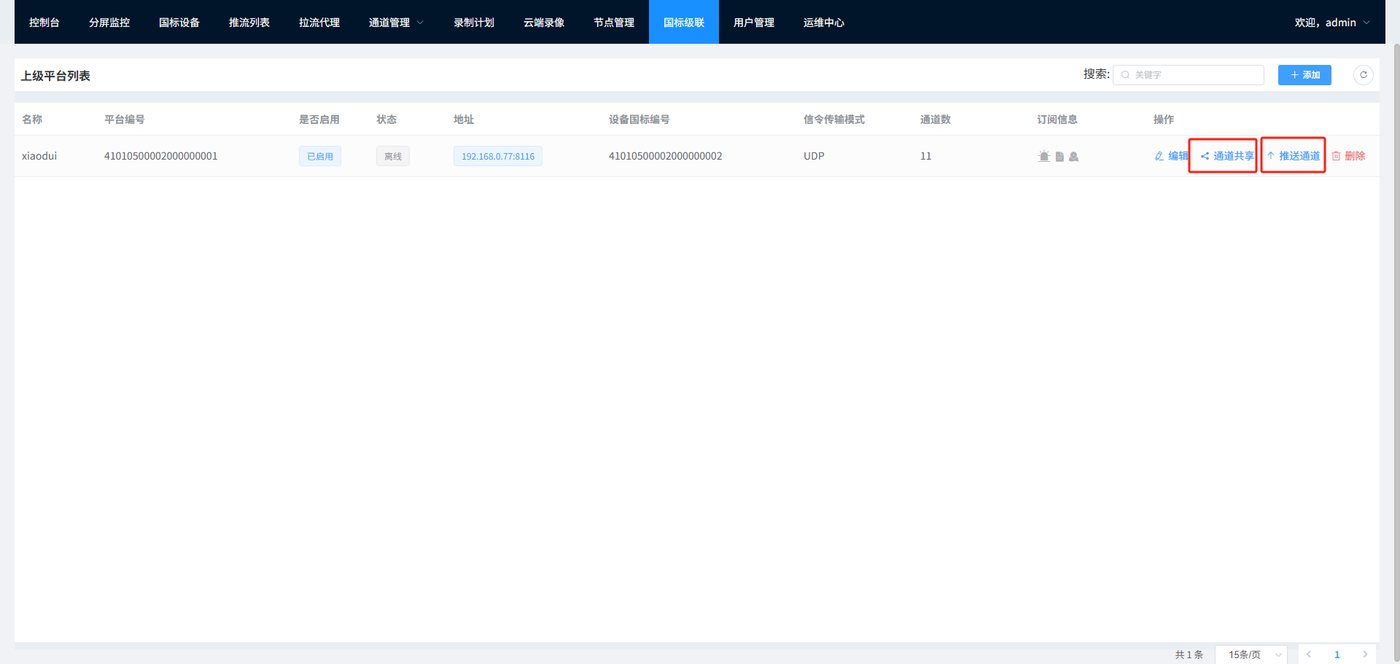
After the cascade succeeds, the device is shown as online. You need to click channel sharing and push the channel. After the push succeeds, the upper-level platform can see the registered device number and video information
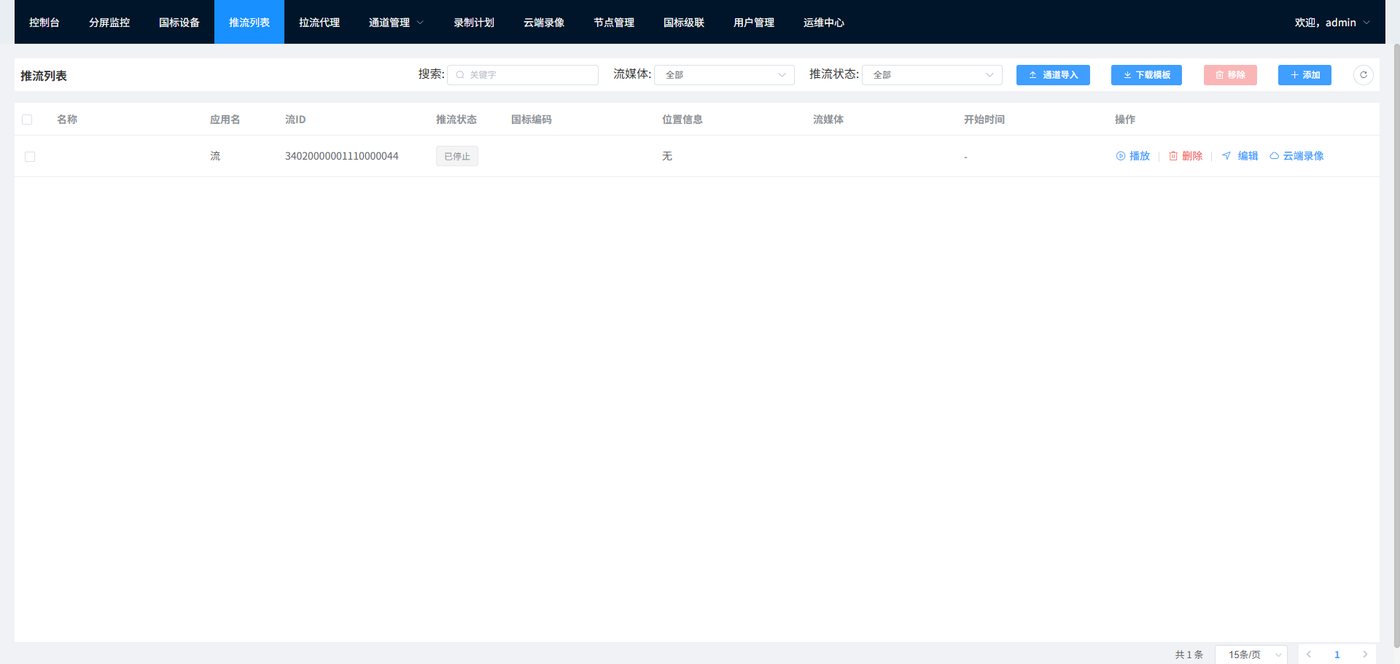
11. Push Stream List
The push stream list function is mainly used to configure streaming media transmission parameters so that the device can push streams to the upper-level platform.
Configure the lower-level platform: use FFmpeg or a professional push tool (such as OBS) to set the RTMP push address, which needs to include the stream application name, stream ID and GB28181 encoding parameters.
Access the upper-level platform: configure the ZLMediaKit streaming media server, set the RTMP listening port, and add the lower-level push stream list information.
Cascade verification: after the lower-level platform pushes the stream, the upper-level platform can parse the channel information through the GB28181 protocol and display the live picture.
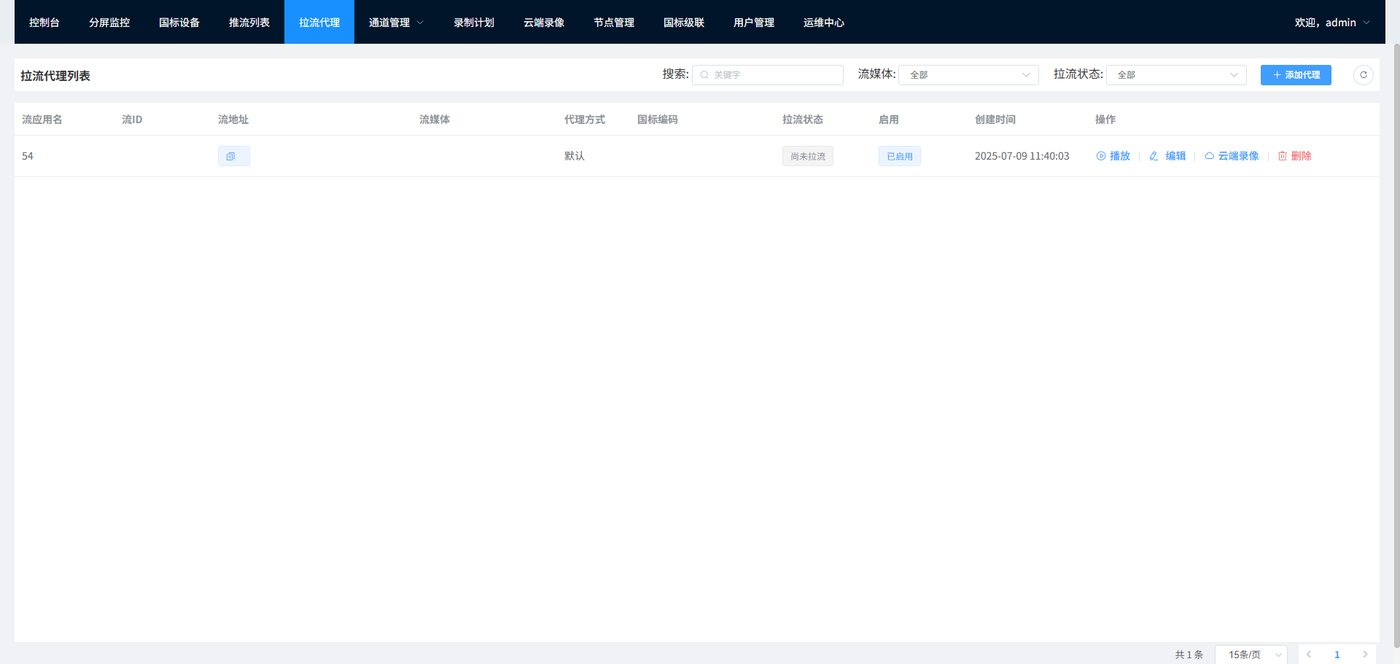
12. Pull Stream List
The pull stream list function is mainly used to implement video access and channel management between different platforms, and supports cascade communication between upper-level and lower-level platforms through standard protocols
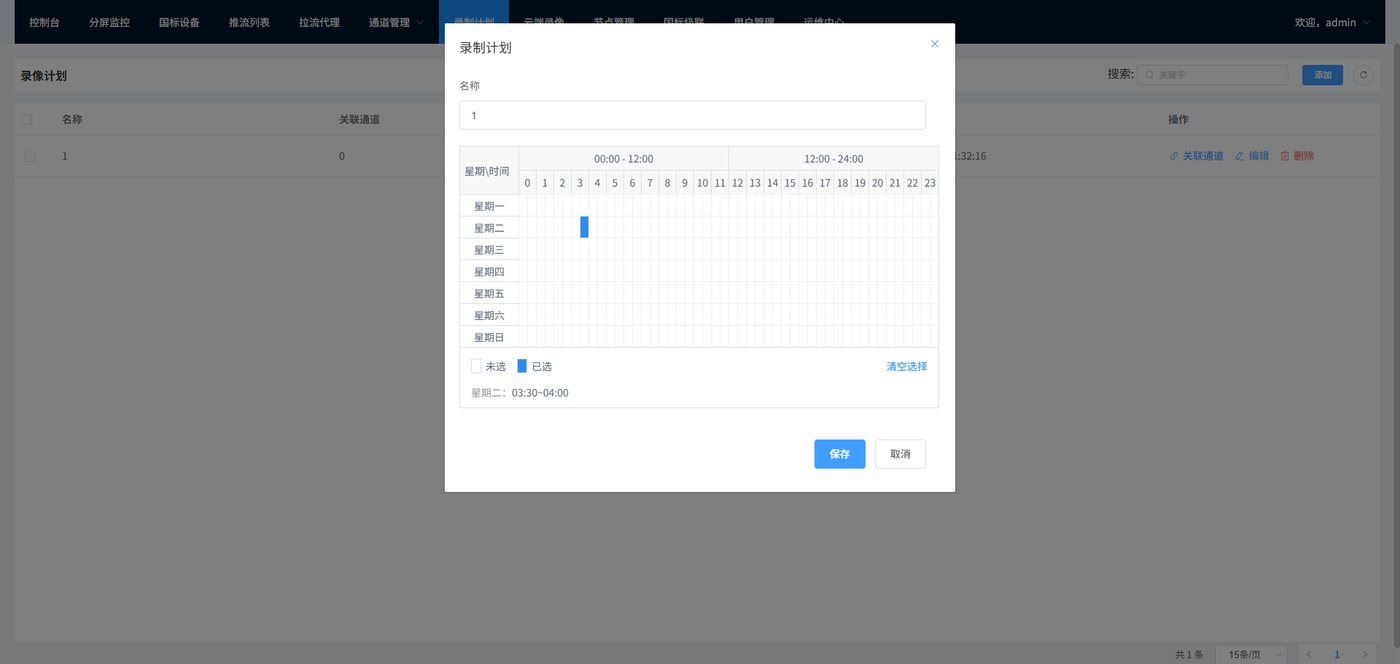
13. Recording Plan
Associate channels, and you can customize the scheduled recording time
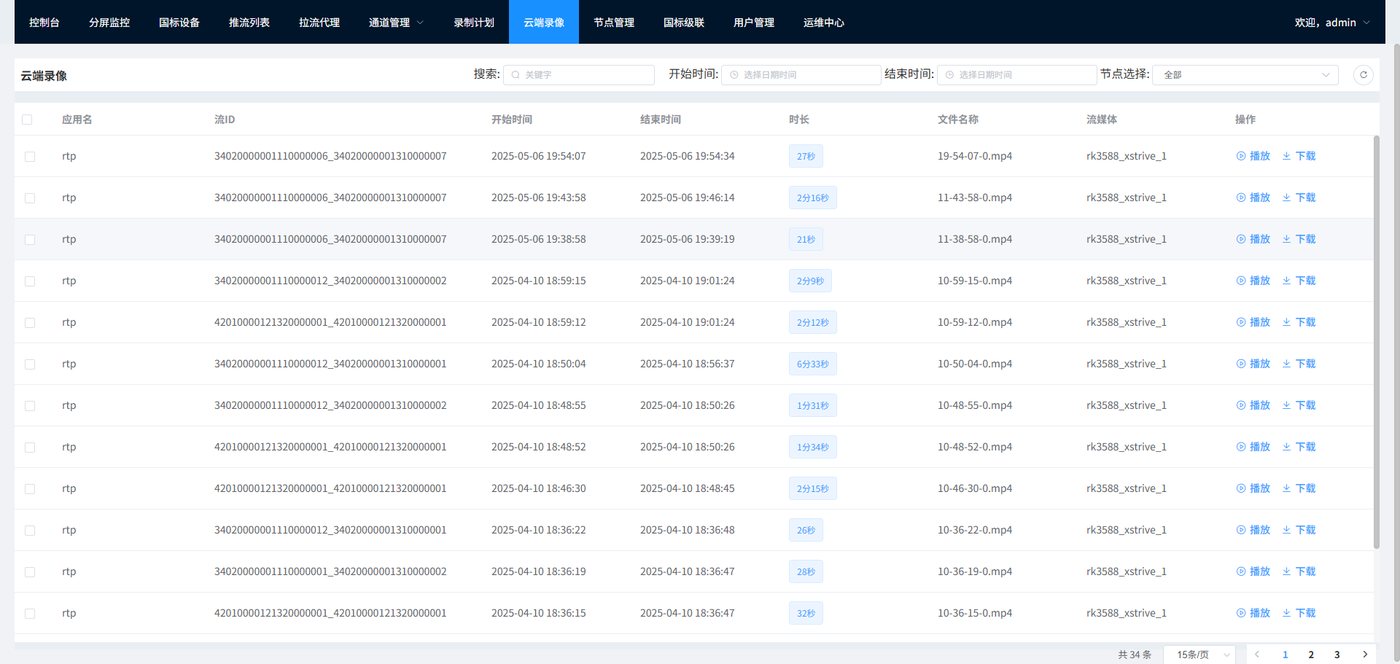
14. Cloud Recording
View video recording playback and download
15. Node Management
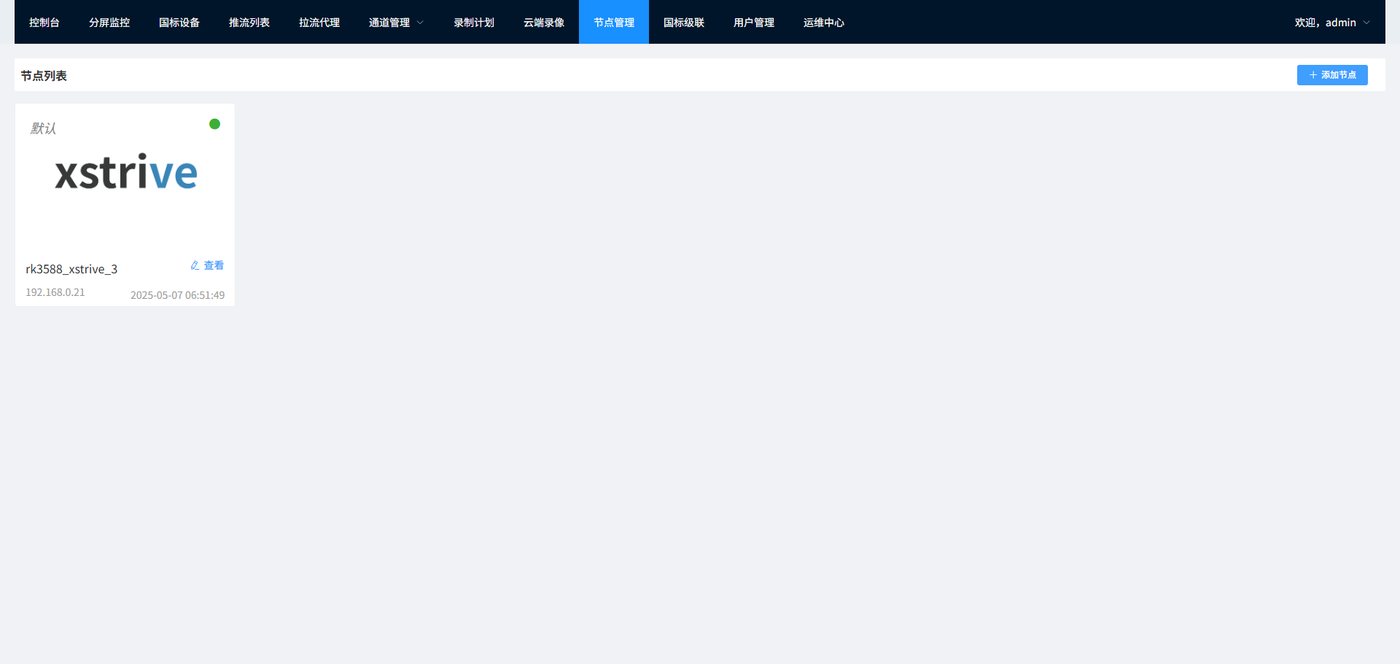
View the device media nodes; media nodes must not be the same during cascading
16. User Management
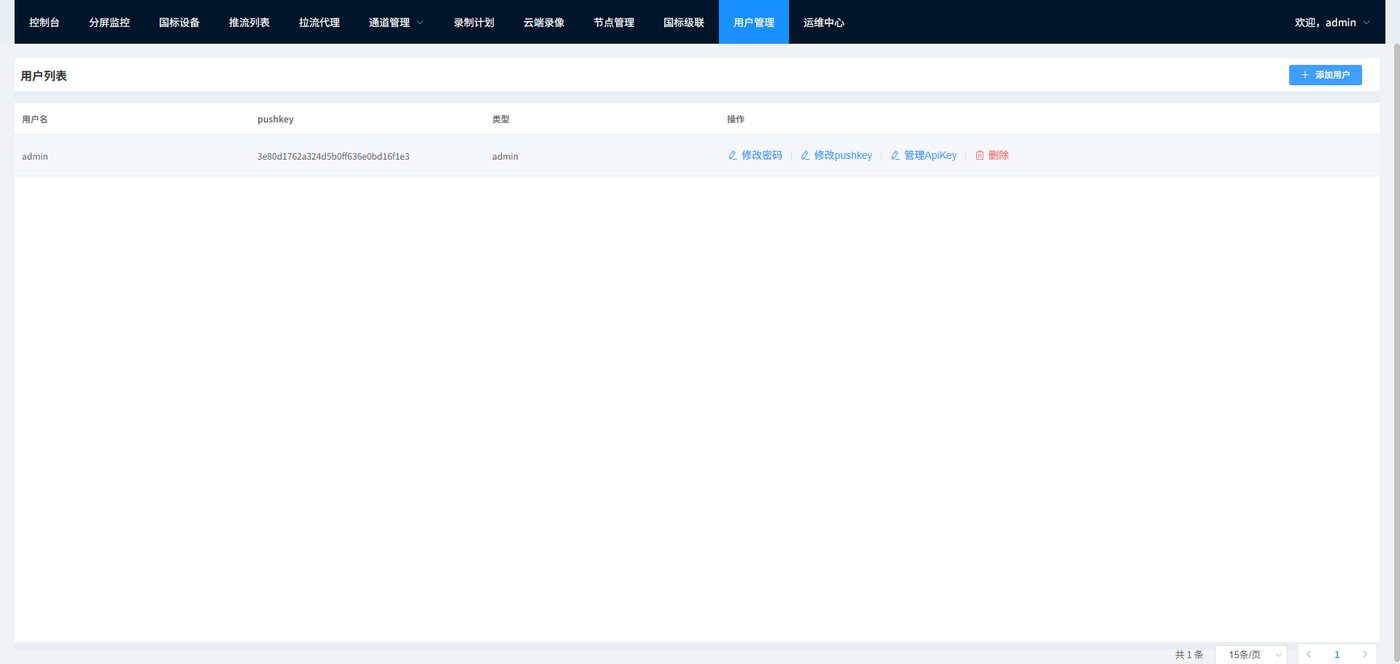
You can modify the account password
Didn't find what you need?Contact us,Talk to our engineers directly.