HDMI HD Recorder
Project: Device User Guide | page_id: 1144
**HDMI HD Recording Box User Manual
**
This manual applies to our HD recording box.
Note: As this is a generic manual, the screenshots shown here may differ from the actual pages of your specific device. Please refer to the actual device pages.
1、 Packing List
Device x1 Power supply X1 (Note: all products are provided with an electronic manual only)`
2、Product Application
1、HDMI input, HDMI output, computer screen recording
2、Wiring method: connect the HDMI input port of the device to the computer host, and connect the HDMI output port to an external display, which can display the computer screen
3、First Use
Use the Device Search Assistant to search for the device IP. Note that the computer and the device must be under the same switch/router. If the device cannot be found, you can check the forced search option in the Device Search Assistant.
Device Search Assistant download address: http://www.xstrive.com/download/
4、Login Page
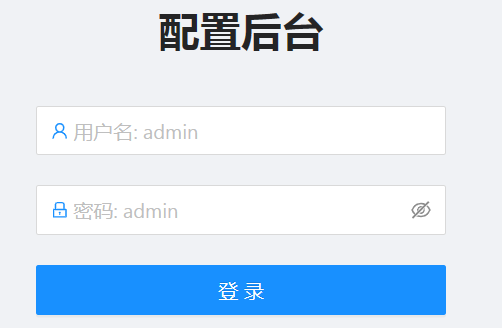
This device is configured through a web management interface, and supports management and configuration from terminals such as PC, tablet and mobile phone. On PC it is recommended to use the Google browser to manage the device (the default account and password are admin).
You can use the dedicated Device Search Assistant software mentioned above to change the device IP (see the Device Search Assistant manual for the change instructions),
and then enter the device IP address in the Google browser to open the device management login page, as shown in Figure 1 below:
5、 Channel Settings
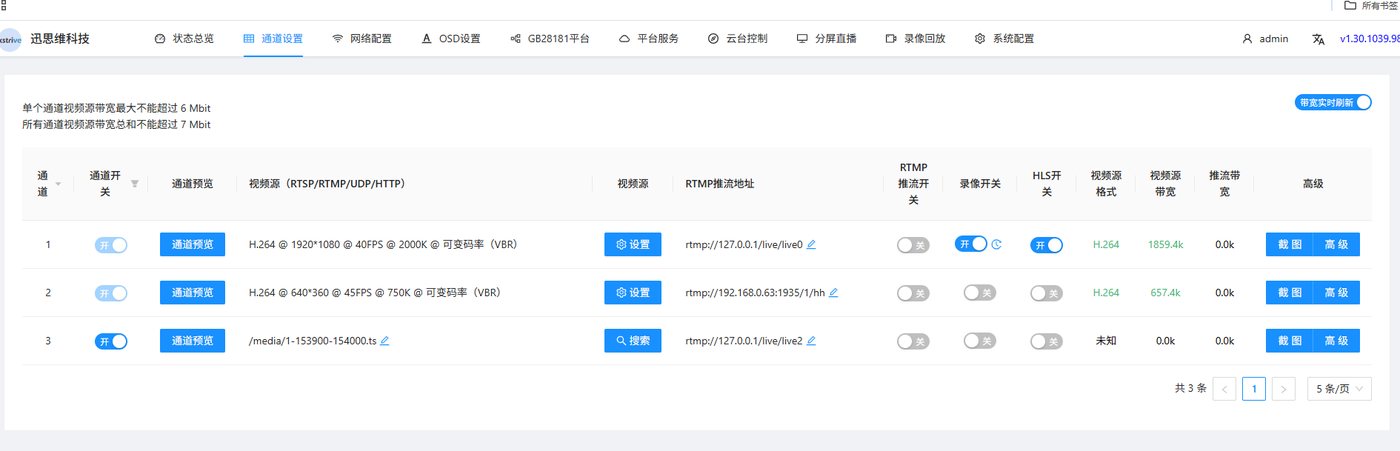
Channels 1 and 2 are HDMI channels, which display the HDMI input video source. After inserting a memory card into the device, turn on the recording switch to start recording
Channel 3 can decode an RTMP video stream
6、 Network Configuration
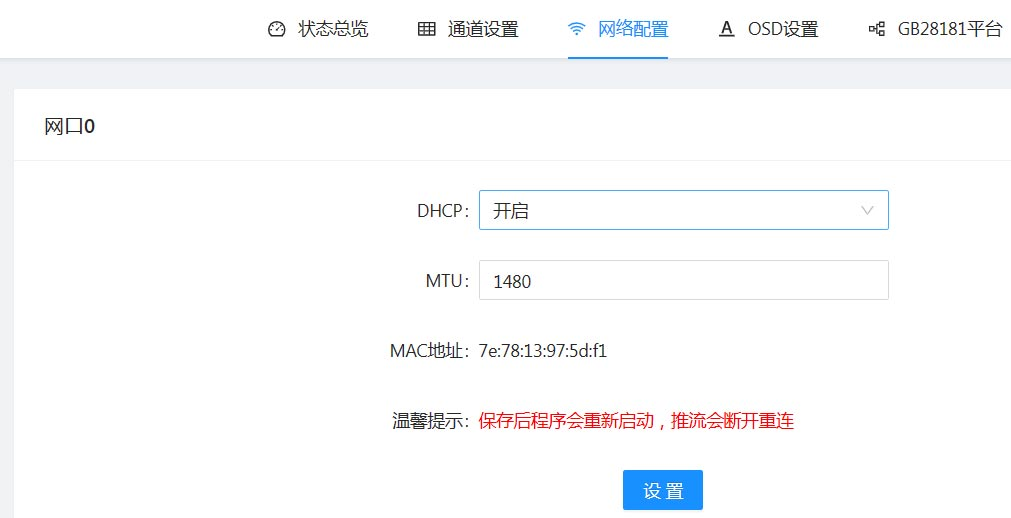
Network settings are used to set the IP address of the device. The local network of the encoder is a physical interface
For local, the configuration page is as follows: when DHCP is enabled, the router automatically assigns an IP to the device and the IP address is not fixed; if DHCP is disabled, you can set a fixed IP yourself, as shown in Figure 10 below:
7、OSD Settings
Set the OSD information after encoding output of each channel. You can enter the real-time time, png images, scrolling text subtitles or text here, as shown below:
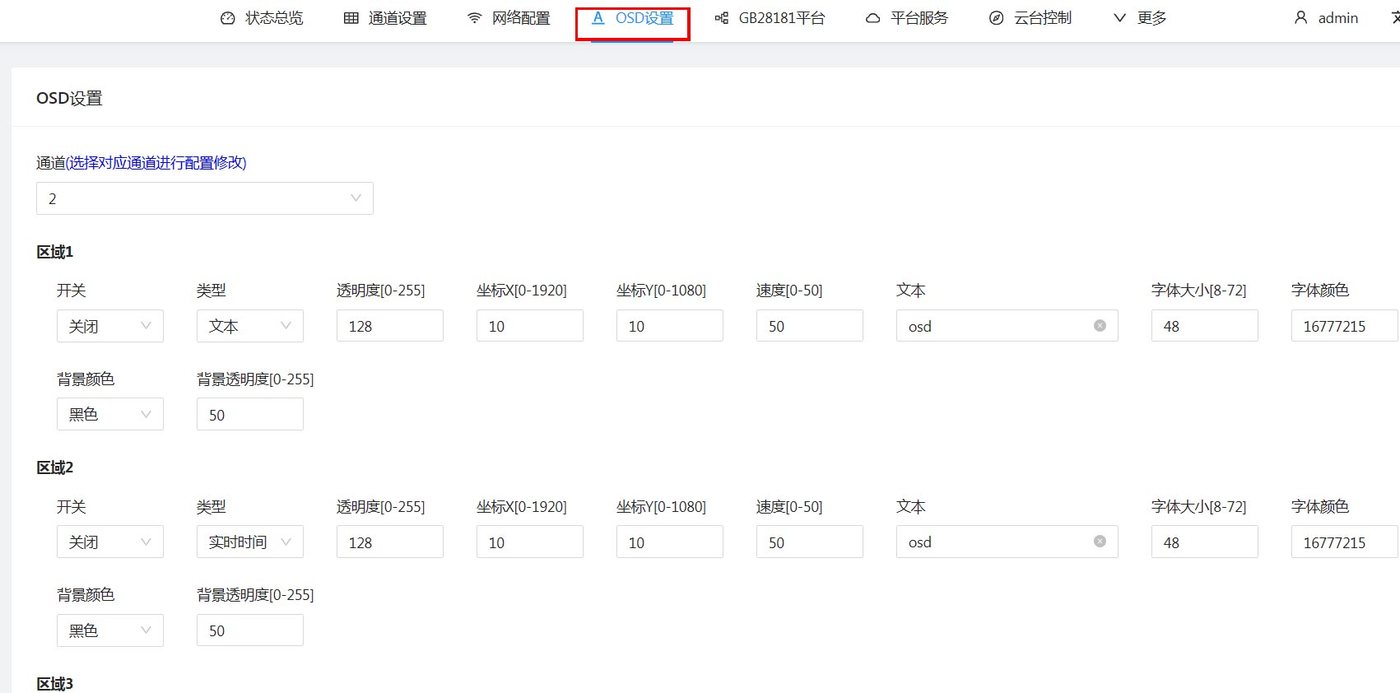
The encoder only supports OSD settings for the hardware encoding channels; channel 3 does not support it
8、 Recording Playback
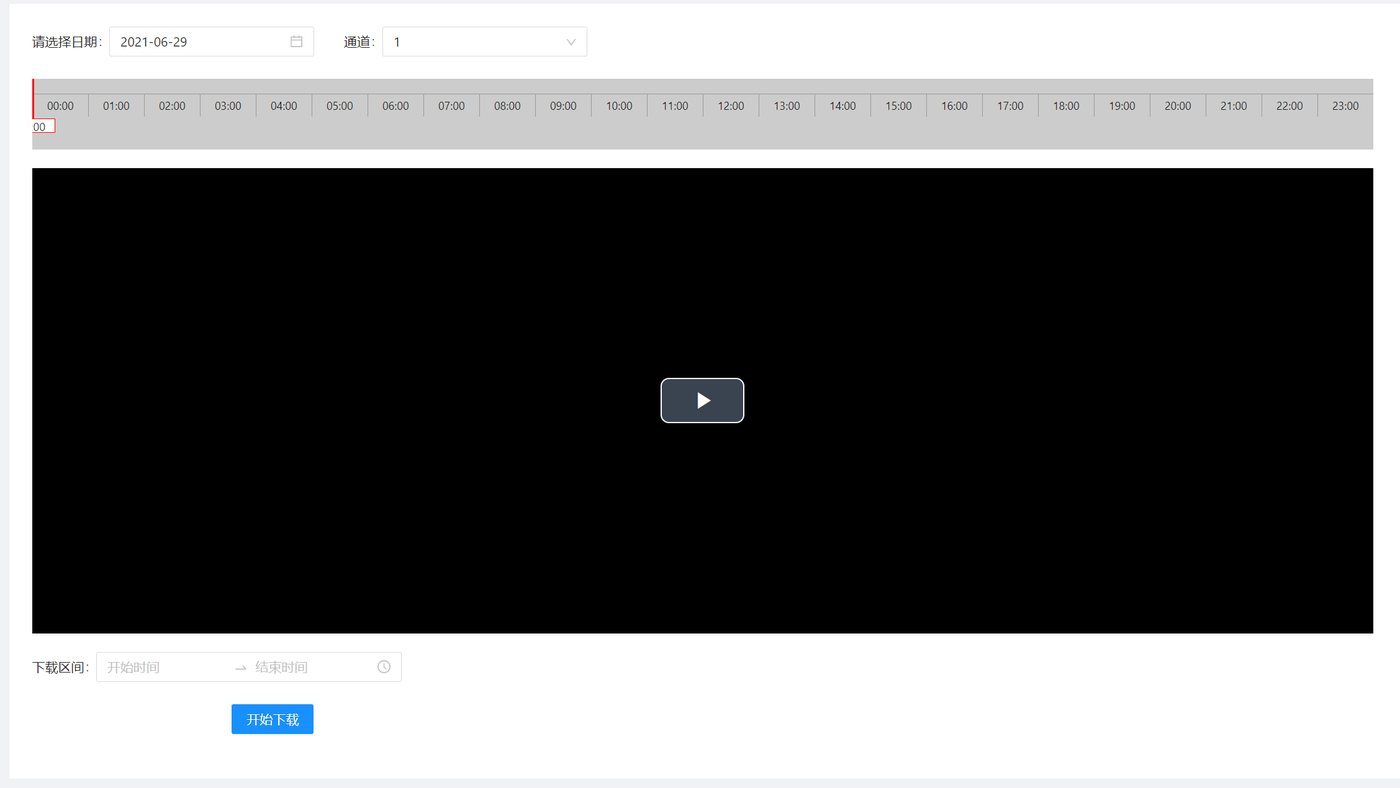
The recording playback function requires local storage support, such as an SD card (Note: only supported by some models, and an SD card or hard disk needs to be installed separately). This function supports video stream storage, playback and video download.
By selecting the date and channel number, you can play back the video of the specified date and specified channel number (the video must have been stored). Recording download supports downloading the video of any time period within the 24 hours of the selected date. Simply select the start time and end time below, then click Start Download to download the recording locally for storage and playback.
The downloaded recording format is a TS file
9、 System Upgrade
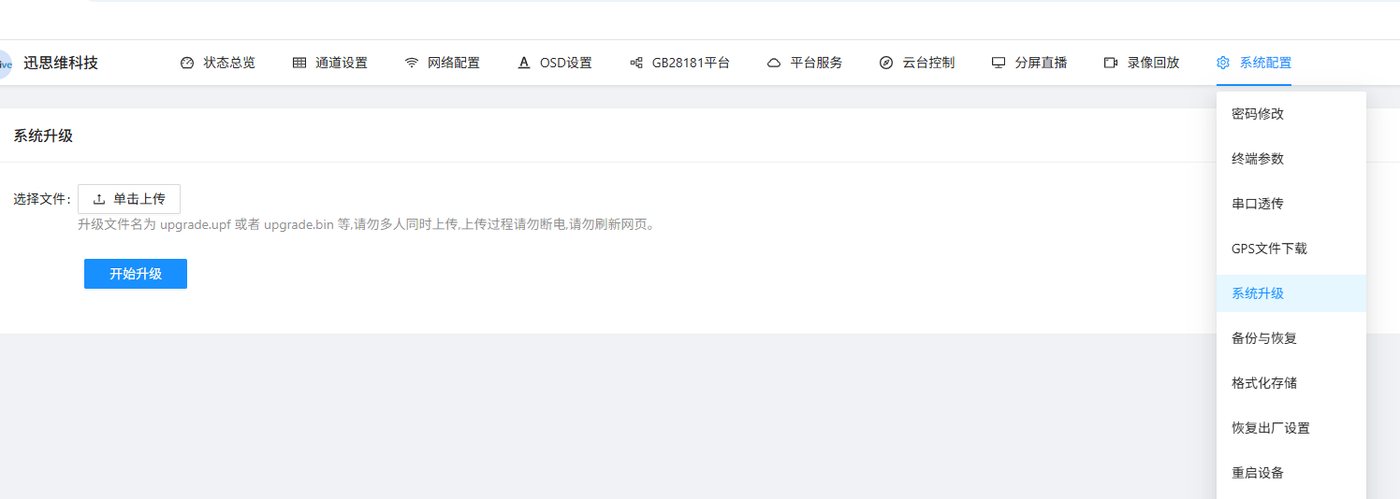
Used for network software upgrade (Note: all our devices have a one-year warranty, and free upgrades are available within the warranty period; upgrades are not supported after one year), as shown below:
10、 Format Storage
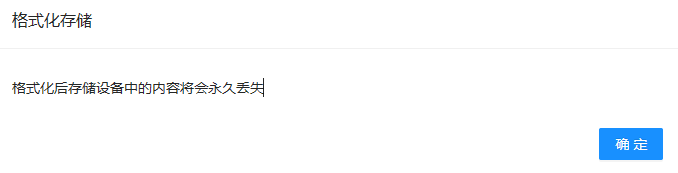
Used to format the local storage. After formatting, the files stored in the device will be lost, so please operate with caution. Only supported by models with storage, as shown below: