webrtcIntercomCameraSetup Steps
Project: Device User Guide | page_id: 974
-
Power on the device and connect the network cable
-
Set the device IP
-
LAN playback/intercom demo: open https://[IP]:9001/** in the Chrome browser**
If the certificate is reported as expired, continue to visit the site -
Public network intercom playback configuration demo steps:
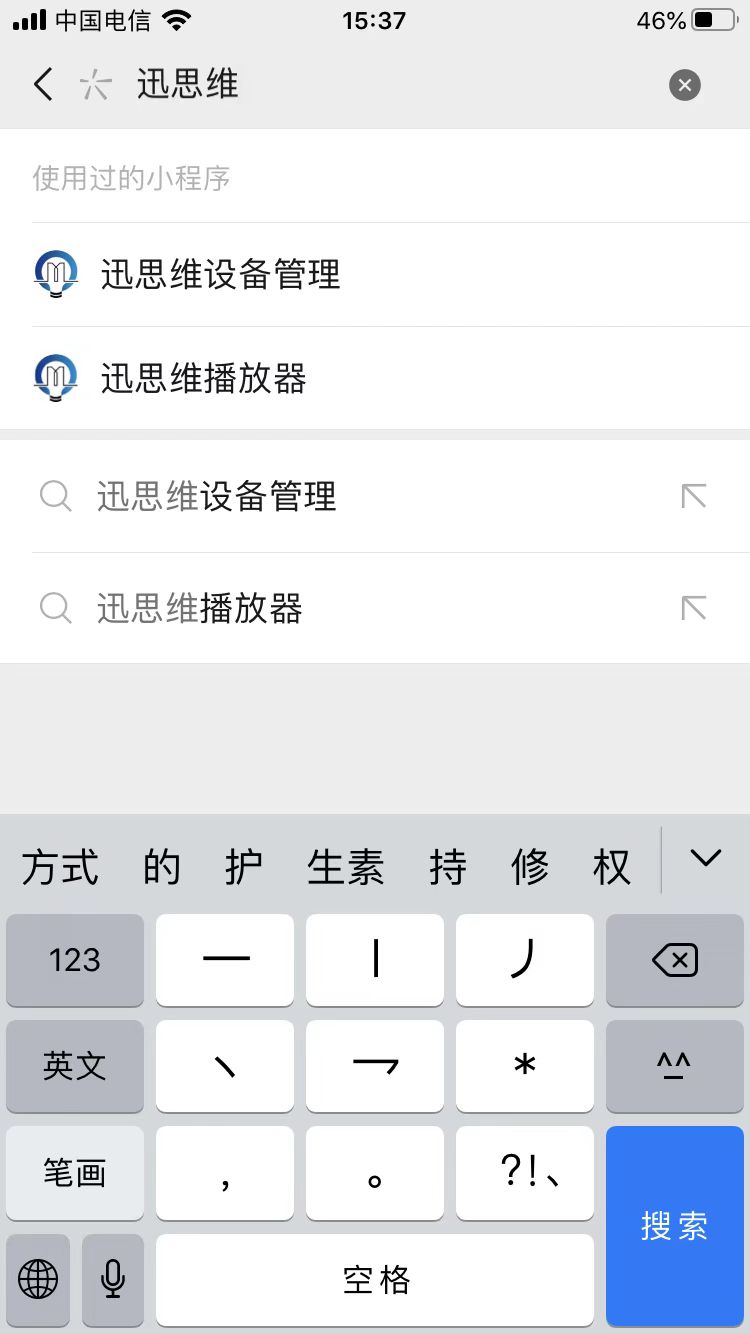
- Open the XSTRIVE Device Management mini program (search for "XSTRIVE" in WeChat mini programs)
-
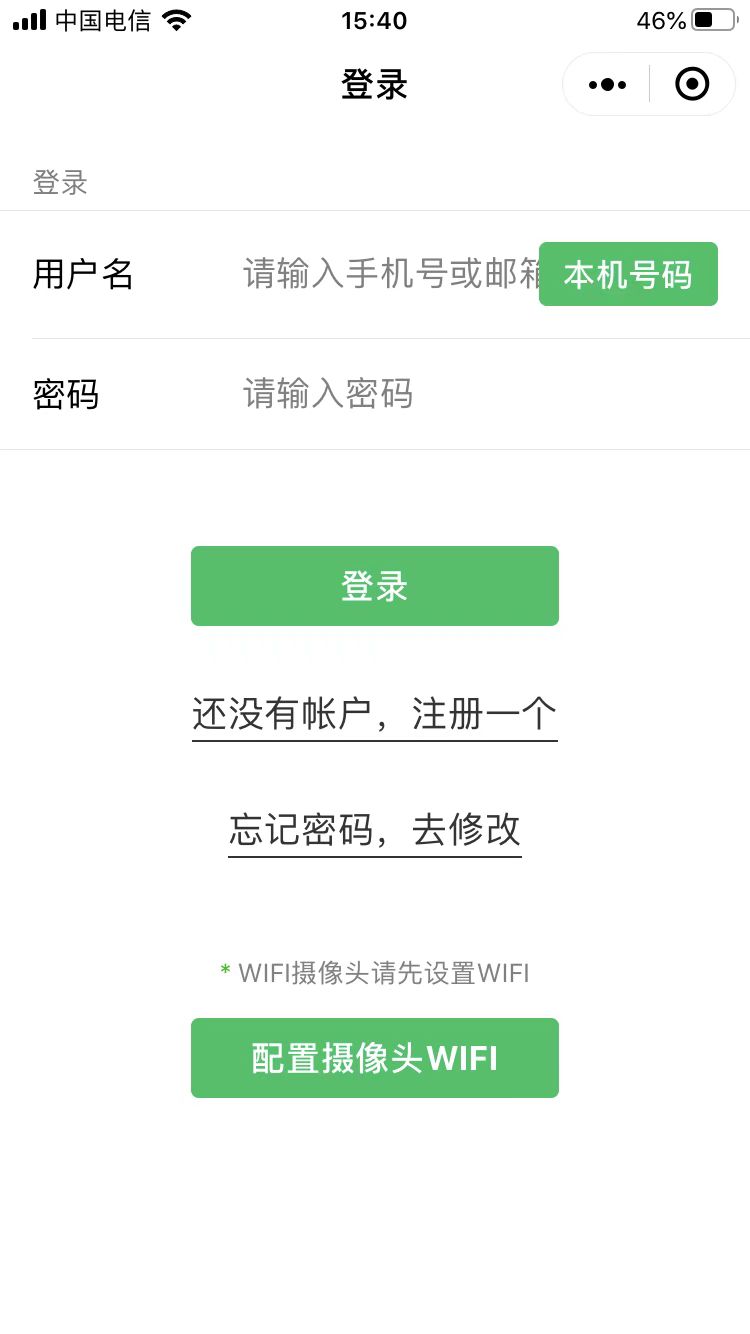
Log in. If you do not have an account, you need to register a new one.
-
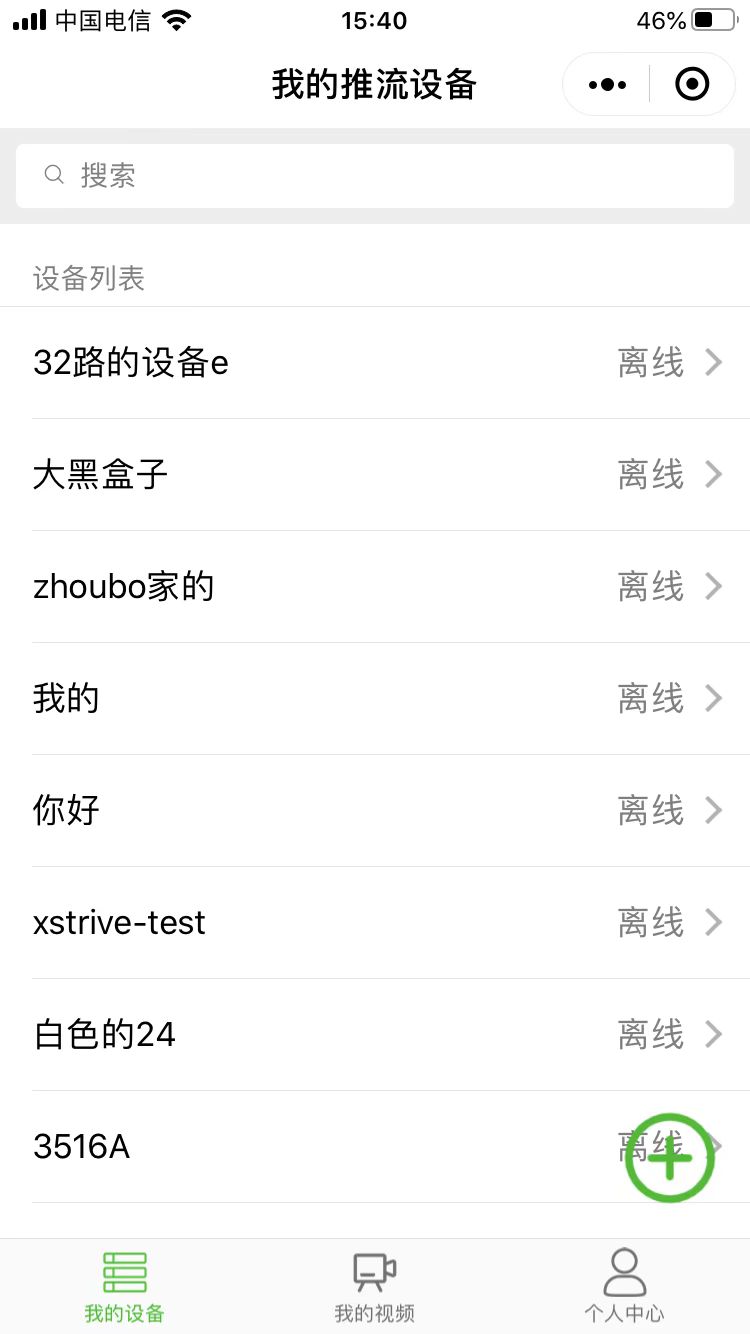
Tap the "+" in the lower right corner, enter the serial number and device name, then tap Add.
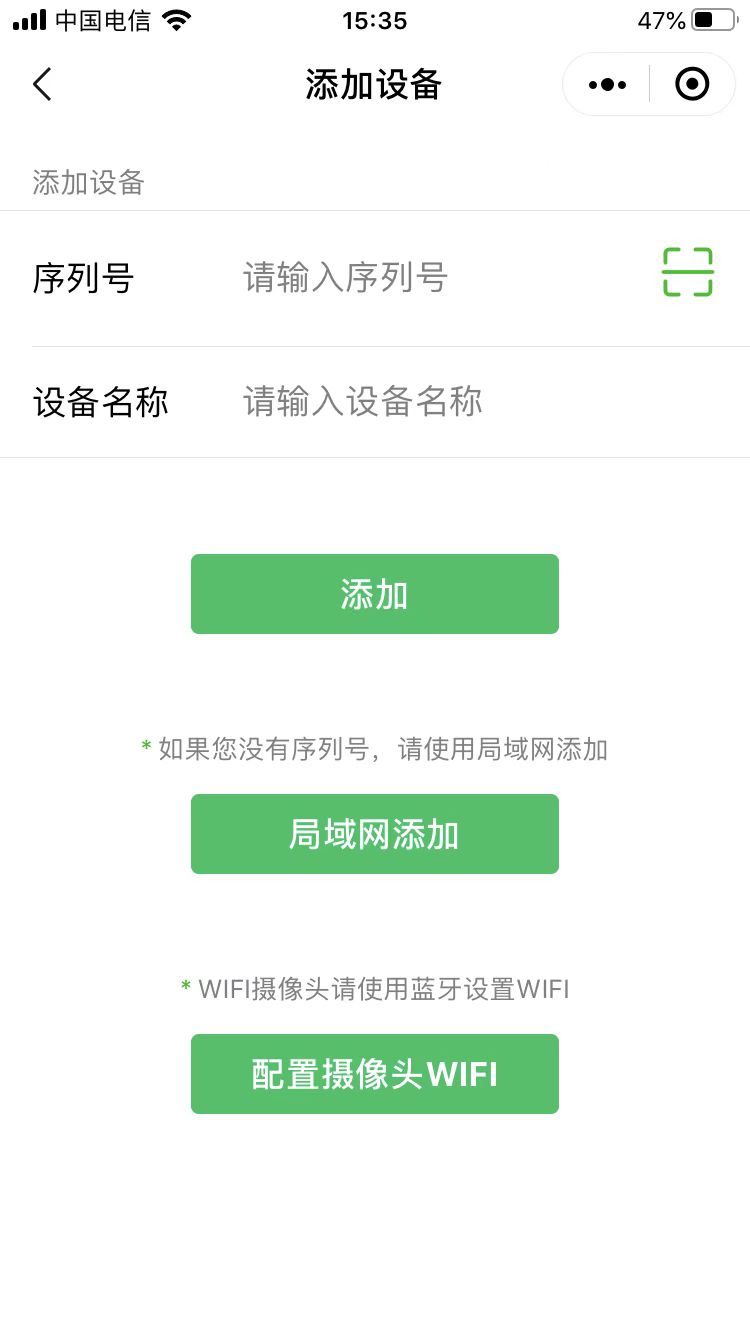
The serial number can be obtained from the [http://[ip]/](http://[ip]/) web page. The initial username and password are: admin
You can also tap [Add via LAN], enter the username and password, and then bind it to your device -
After adding successfully, you can use the Chrome browser (most mobile browsers also work) to open [https://live.xstrive.com/serial number]/webrtc/ to connect to the device
Note: if playback fails, try adding the startup parameter "--disable-features=WebRtcHideLocalIpsWithMdns" to Chrome
Mobile browsers can also open it to connect to the device
Independent Page Playback Intercom
https://device.xstrive.com
Enter the serial number, device login username and password to enter PTZ playback, and the intercom can then be started
【Channel Preview】-【Video Playback】: the WebRTC tab can independently play and talk