Multi-Platform Live Streamer User Manual
Project: Product Specification | page_id: 1716
Wuhan XSTRIVE Technology Co., Ltd.
April 2026
Table of Contents
- Product Overview
- Product Specifications and Parameters
- Packing List
- First-Time Use Guide
- Camera Streaming Operation Steps
- Live Streaming Platform Settings
- FAQ
- Safety Precautions
- Technical Support
1. Product Overview
XSWUVCQ10-50M1CH Remote Multi-Platform Live Streaming Device is an industrial-grade remote multi-platform live streaming device that supports remote live streaming from different locations, synchronous multi-platform streaming, network video protocol conversion and full remote O&M.
1.1 Core Product Features
(1) Remote live streaming capability: the host can control the real-time return and live broadcast of pictures from extreme outdoor environments while staying indoors, without being on site.
(2) Synchronous multi-platform streaming: 3 channels are supported in USB mode and 20 channels in network mode for simultaneous streaming; one capture is distributed across the entire network.
(3) Wide protocol compatibility: covers mainstream audio/video codecs and network transport protocols, and adapts to various cameras and video source devices.
1.2 Applicable Scenarios
- Outdoor scenarios: wild scenery live streaming, real-time streaming of outdoor events, live transmission for cultural tourism projects.
- Media scenarios: synchronous multi-platform live streaming, broadcast-grade streaming media protocol conversion and forwarding.
- Security scenarios: unattended surveillance video upload to the cloud in wild forest areas, construction sites and remote areas.
- Industrial scenarios: remote return of industrial site video, real-time monitoring of equipment operating status.
2. Product Specifications and Parameters
2.1 Basic Parameters
| Item | Parameter Content |
|---|---|
| Product Name | Remote Multi-Platform Live Streaming Device |
| Model | XSWUVCQ10-50M1CH |
| Dimensions | 130 × 80 × 25 mm |
| Overall Weight | 298.9 g |
| Power Supply | DC 12V DC power supply |
| Operating Temperature | 0 ~ 70℃ |
2.2 Network Video Input Protocols
The device supports the following network video stream pull/access protocols:
- HTTP
- RTSP
- RTMP
- RTP
- UDP-TS
2.3 Network Video Output Protocols
The device supports distribution and push using the following streaming media protocols:
- HTTP-FLV
- RTSP
- RTMP
- UDP-TS
- HLS
- WS-FLV
- WS-RAW
2.4 Live Streaming Platform Adaptation Specifications
| Working Mode | Supported Platforms | Simultaneous Access Limit |
|---|---|---|
| USB mode | Douyin, Bilibili, Xiaohongshu, WeChat Channels and other mainstream live streaming platforms | 3 platforms |
| Network mode | Douyin, Bilibili, Xiaohongshu, WeChat Channels and other mainstream live streaming platforms | 20 platforms |
2.5 Audio and Video Codec Specifications
| Type | Supported Formats |
|---|---|
| Video encoding input | H.264, H.265 |
| Audio encoding input | AAC, G.711 |
| Video encoding output | MJPEG, UVC |
| Audio encoding output | PCM, UAC |
2.6 Transmission Performance Parameters
| Item | Parameter Content | Notes |
|---|---|---|
| Max network video channels | 1 | A single device supports only 1 video stream being processed at a time |
| Max total bitrate | 50Mbit | The actual bitrate varies slightly depending on the protocol and encoding format |
3. Packing List
Please check the contents of the package; if anything is missing, please contact the dealer in time.
| No. | Item Name | Quantity | Notes |
|---|---|---|---|
| 1 | UVC stream pusher main unit | 1 unit | Core device |
| 2 | USB power cable | 1 pc | Power supply and data transmission |
| 3 | Network cable | 1 pc | Network connection |
| 4 | Product certificate | 1 pc | Certificate of conformity |
Note: This product only provides an electronic version of the manual.
4. First-Time Use Guide
4.1 Device Connection
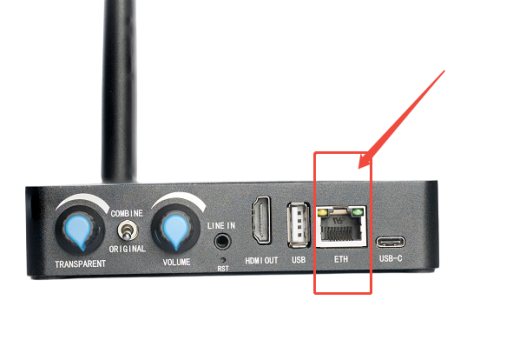
- Connect the network cable to the network interface of the stream pusher.
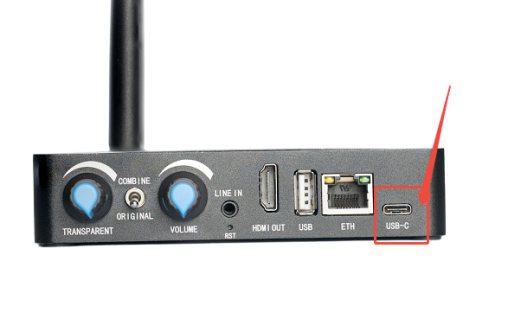
- Connect one end of the USB cable to the stream pusher and the other end to the computer's USB port.
- Check the computer's Device Manager and confirm that three camera devices appear: UVC3 Camera, XS UHD Camera, XS UHD Camera2.
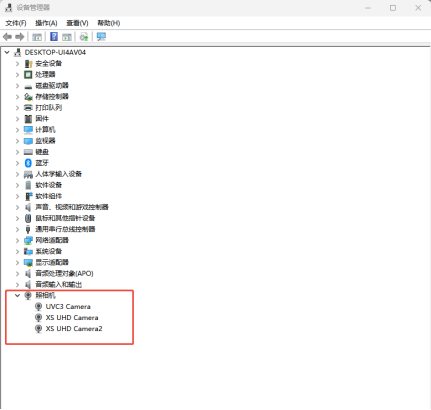
- Three cameras means that simultaneous live streaming on three platforms is supported.
- If they are not displayed, please unplug and reconnect.
Tip: After the device is connected successfully, three independent camera devices should be displayed in the computer's Device Manager.
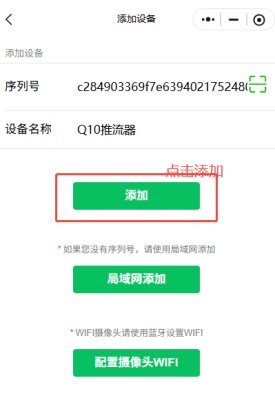
4.2 Device Management Mini Program
Scan the QR code to enter the "XSTRIVE Device Management Mini Program" for device configuration:
- Open WeChat and scan the QR code on the product package or manual.

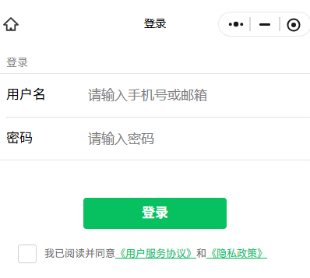
- Enter the mini program and log in to your account.
- Complete device binding according to the mini program guide.
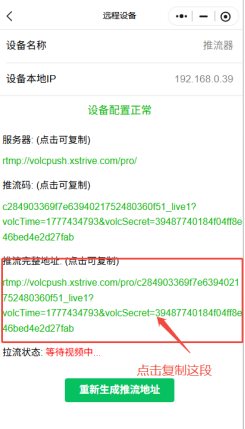
- Obtain the push address for subsequent configuration.
5. Camera Streaming Operation Steps
This tutorial uses a DJI camera as an example; the operation of other camera brands is similar.
5.1 Step 1: Obtain the Push Address (same steps as above)
- Log in to the [XSTRIVE Device Management] WeChat mini program
- Select the bound streaming device
- Find [Push Address] on the device details page
- Copy the push address (RTMP format)
5.2 Step 2: Camera App Configuration
- Open the DJI camera app
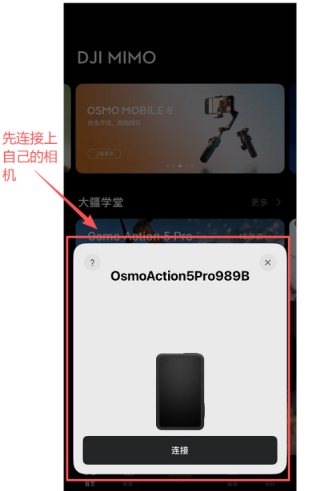
- Enter the live streaming settings page and select [Custom Live] or [RTMP Push]
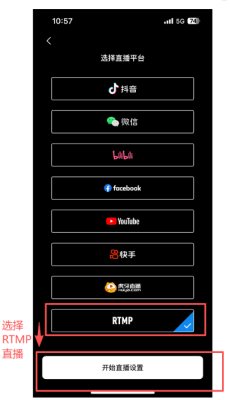
- Paste the push address obtained from the mini program and confirm the push parameters (resolution, bitrate, etc.)
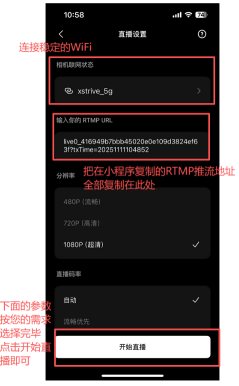
- Start streaming
5.3 Step 3: Live Companion Settings
- Open the live companion (such as the Douyin Live Companion)
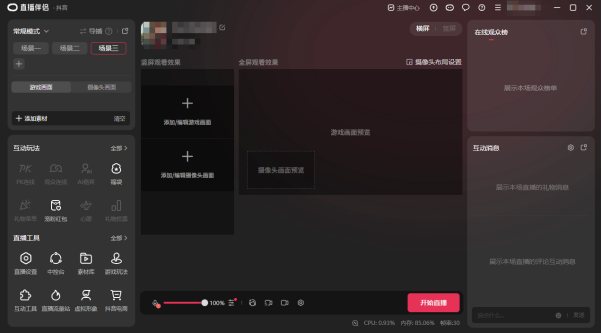
- Add a "Camera" source
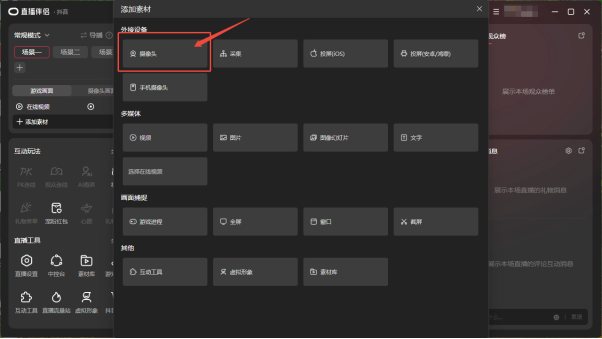
- Select the camera device corresponding to the stream pusher (displayed as a camera)
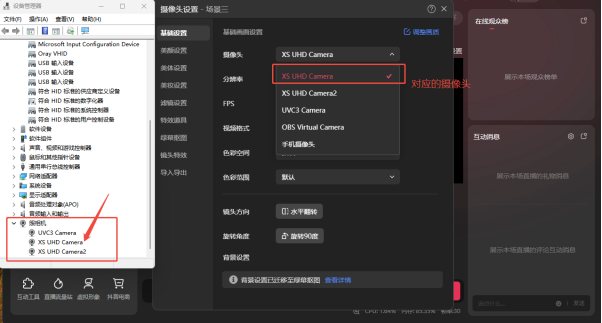
- Adjust the picture position and size
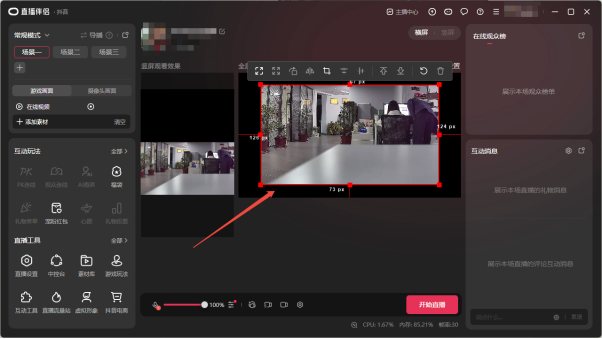
- Start live streaming
6. FAQ
6.1 Problem 1: Cannot start live streaming, no video picture
- If the camera cannot be found when selecting live streaming, try reconnecting the device power switch
- If the device connection displays normally but the picture still cannot be displayed, uninstall and reinstall the driver in Device Manager
- Check whether the USB cable is firmly connected
- Try changing to another computer USB port
6.2 Problem 2: No sound in the live picture
- Check the live streaming software settings → Sound → Microphone
- [Microphone (XS Mic Camera)] must be selected
- Open computer Settings → Privacy → Microphone
- Make sure [Allow apps to access your microphone] is enabled
6.3 Problem 3: High streaming latency
- Check whether the network bandwidth is sufficient
- Try lowering the streaming bitrate
- Use a wired network instead of a wireless network
- Check whether other programs are occupying network bandwidth
6.4 Problem 4: The device cannot connect to the network
- Check whether the network cable is plugged in properly
- Confirm that the network equipment (router/switch) is working properly
- Check whether the IP address is obtained normally
- If a 4G/5G module is used, confirm that the SIM card is installed correctly and has data allowance
7. Safety Precautions
Warning: Please read the following safety precautions carefully; improper operation may cause damage to the device.
7.1 Power Safety
- Please use the original or a compliant DC 12V power adapter
- Make sure the positive and negative poles of the power cable are connected correctly
- Avoid using the device in a humid environment
- Do not disassemble or modify the device yourself
7.2 Environmental Requirements
- Operating temperature: 0 ~ 70℃
- Avoid prolonged use in extreme temperature environments
- Pay attention to waterproofing and dust prevention when used outdoors
- Avoid direct sunlight on the device
7.3 Network Usage
- Do not unplug or plug the network cable while the device is working
- Ensure that the network environment is stable
- Check the network connection status regularly
8. Technical Support
8.1 Contact Information
| Item | Information |
|---|---|
| Company Name | Wuhan XSTRIVE Technology Co., Ltd. |
| Product Model | XSWUVCQ10-50M1CH |
| Device Management Mini Program | Scan the QR code in WeChat to enter |
| Phone | 027-81388982 |
8.2 Remote O&M Functions
This product supports remote O&M; the following functions can be implemented through the mini program:
| Function | Support Status | Function Description |
|---|---|---|
| Remote upgrade | Supported | Online firmware upgrade, no need to disassemble the device for debugging |
| Remote management | Supported | Remotely modify device operating parameters and remotely play back device recordings |