Video Encoder/CamerawebrtcManual
Project: Device User Guide | page_id: 375
[TOC]
I. WebRTC Playback
1. WebRTC playback preview is available on the [PTZ Control] page
2. Playback on the device sharing page (supported by v1.26.0.68 or later)
[Channel Settings] - [Channel Preview], switch to the WebRTC tab and copy the WebRTC playback address to play it in a new browser page
[Streaming List] - [Preview], switch to the WebRTC tab and copy the WebRTC playback address to play it in a new browser page
[GB28181 Platform] - [Preview], copy the WebRTC playback address to play it in a new browser page
3. Embed our player for playback from the external network. Assemble the address according to the instructions below
http://player.xstrive.com/webrtc/live?videoUrl=http://192.168.0.198/api/webrtc/play?streamPath=hlsram/live0&hasAudio=1&bodyType=1
-
videoUrl: SDP API address
Local example: http://192.168.0.15/api/webrtc/play?streamPath=hlsram/live0
Remote example: http://serialnumber.cloud.xstrive.com:9502/api/webrtc/play?streamPath=hlsram/live0
live0 at the end of the address means channel 1, live1 means channel 2, and so on
For the encrypted address, refer to the API address description in point 3 below

-
hasAudio:whether audio is present, please select correctly
1:audio present
0:no audio -
bodyType:SDP transmission mode, just write the fixed value 1
0:text
1:JsonNote: When using player.xstrive.com to play a local address, if playback fails, first resolve the browser cross-domain access security issue for local addresses.
Refer to docs.html
4. Reference address of the API for getting SDP for WebRTC playback
doc-302.html
5. In some cases where WebRTC remote playback fails due to LAN restrictions, a direct relay platform can be configured
    On the [System Settings] [WebRTC Configuration] - [WebRTC Basic Configuration] page, select <P2P Relay Server>.
    The xstrive platform can also be selected automatically for relay, which is configured by default
II. WebRTC Streaming
-
Supported audio and video formats
1. Video format H.264. Recommended configuration: H.264 level: Baseline Profile. Bitrate type: vbr. Frame rate [20-30]. Bitrate upper limit: below 2048. B frames are not supported.
1. Audio supports OPUS (48K). G711(8K). The AAC format is not supported -
Step 1: On the device backend page, select [System Configuration] [WebRTC Streaming Configuration] to configure the streaming server parameters
-
Step 2: In [Channel Configuration], click [Advanced] on the channel to be enabled, select the configured WebRTC server, enable it and save.
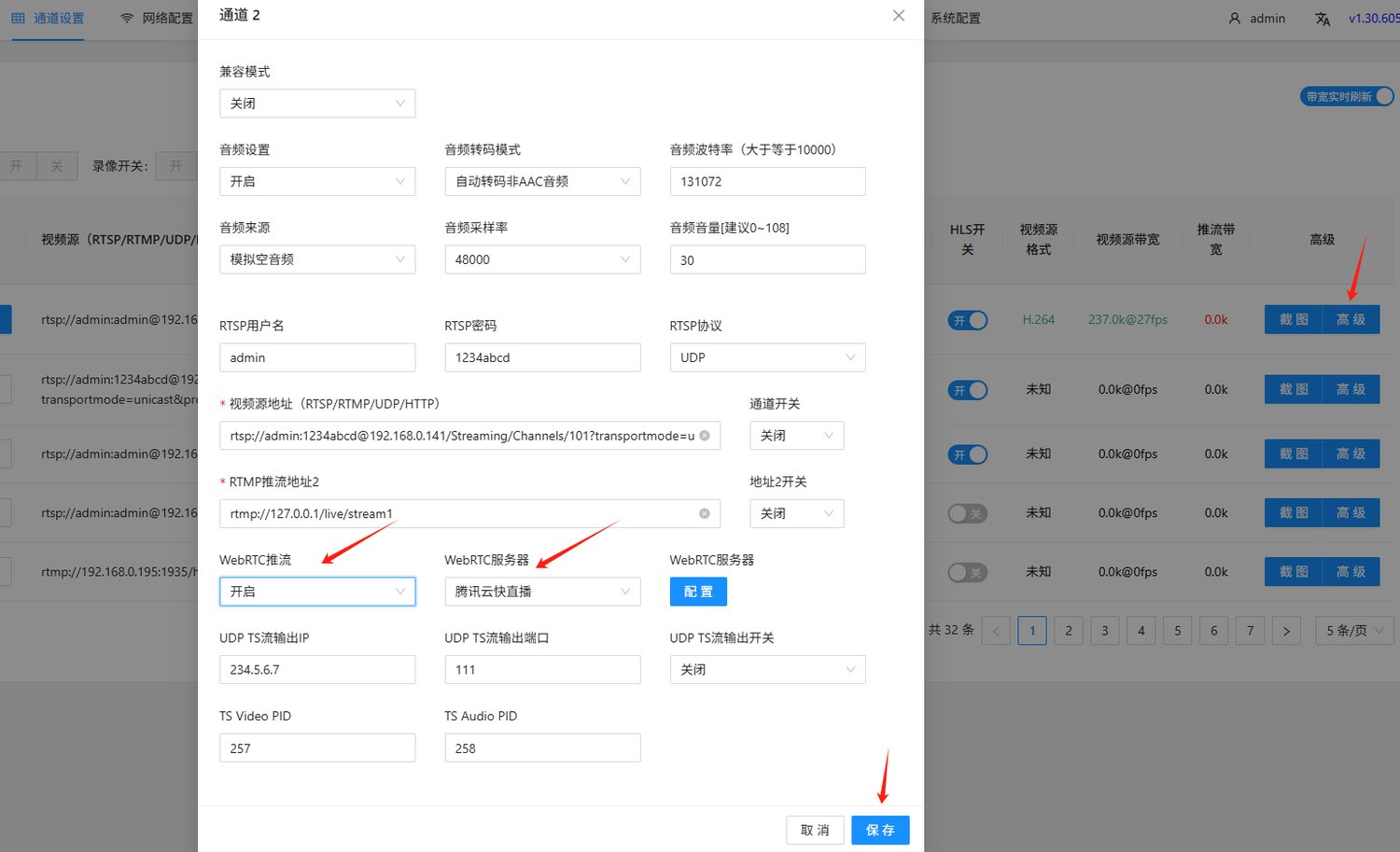
- Step 3: Go to the corresponding platform to find the playback address and play it
Tencent Cloud LEB Configuration Reference
- Log in to the Tencent Cloud console, go to [Cloud Live Streaming], select [Domain Management], find the push domain, and view the push address resolution and authentication configuration in the push configuration.
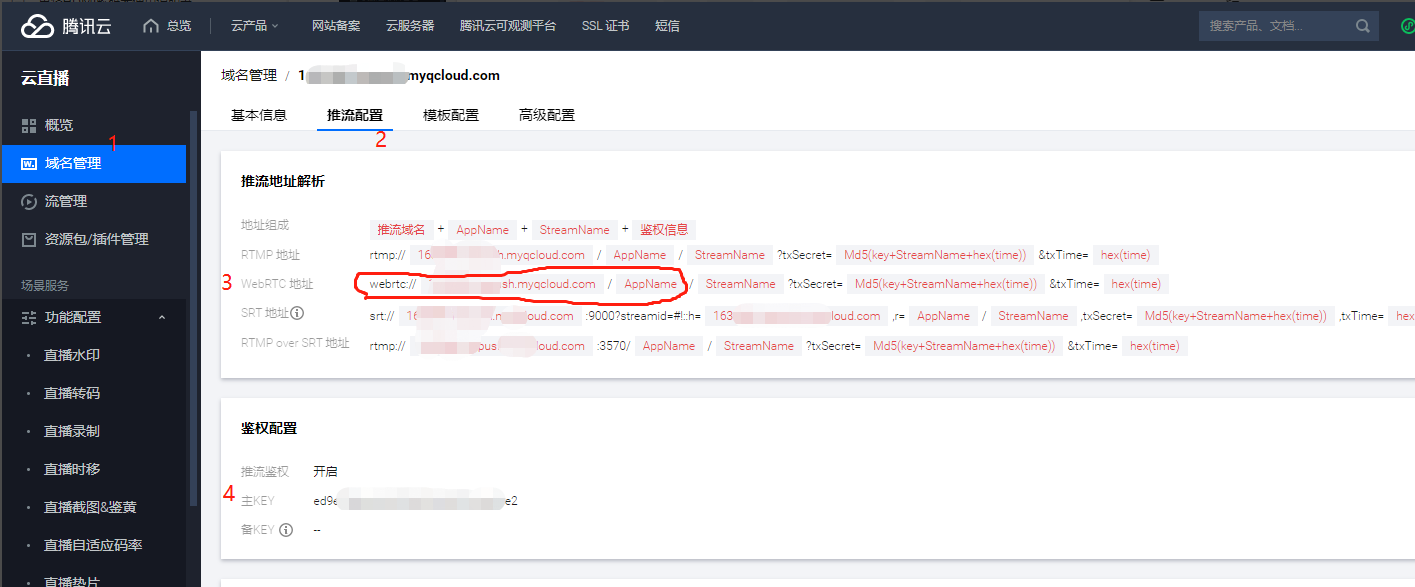
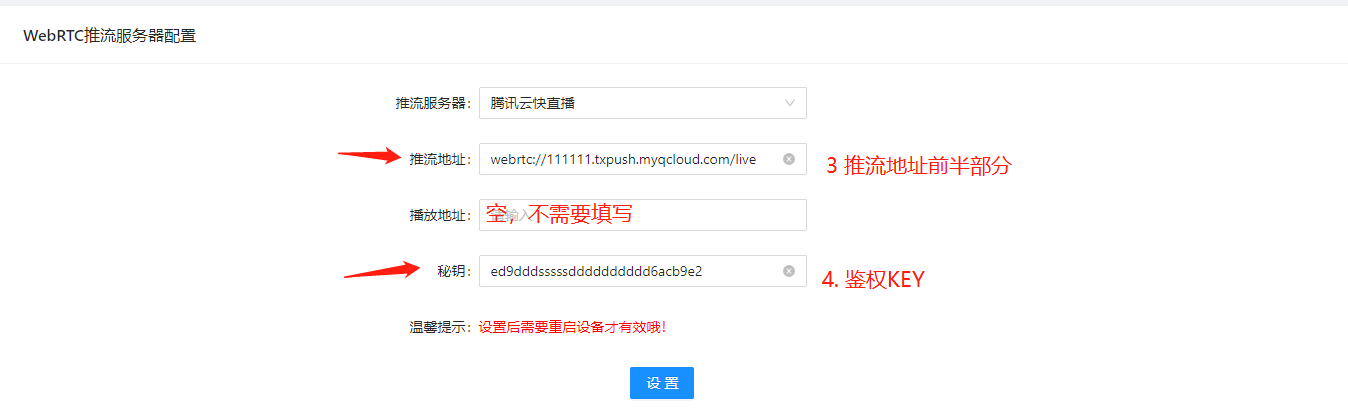
According to the illustration, fill in the corresponding positions 3 and 4.
Example: For example, if the push address you generated is: webrtc://111111.txpush.myqcloud.com/live/1301828553_test?txSecret=fe0d566f77e459&txTime=63F8604C
In the XSTRIVE WebRTC streaming server page, you only need to fill in the webrtc://111111.txpush.myqcloud.com/live part as the push address.
The following stream name and authentication information are added automatically by the system and do not need to be filled in. Refer to the example figure
- Playback example
Go to the Tencent Cloud console. In Cloud Live Streaming - Stream Management, you can find the corresponding streaming information by device serial number and channel number. Click Preview at the end to play it.
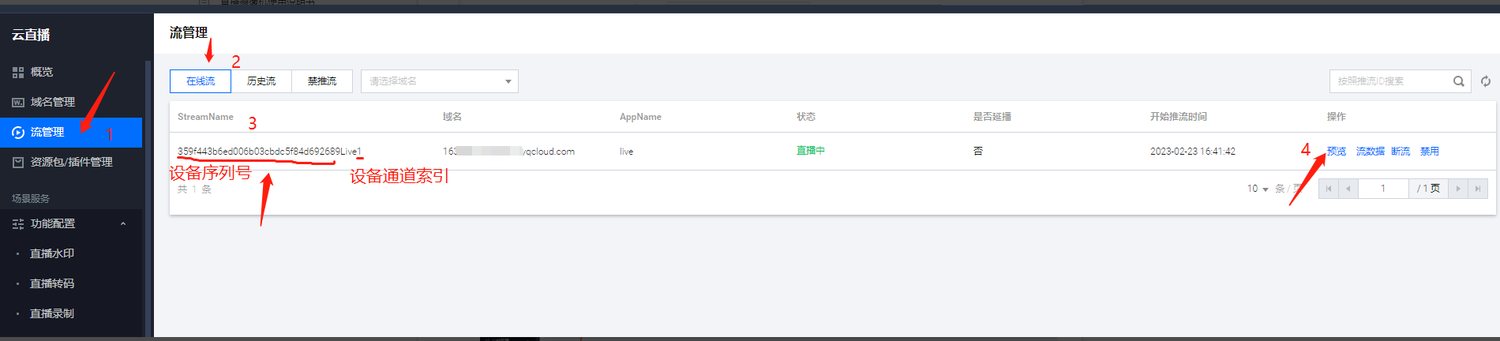
In StreamName, the first part is the device serial number. The latter part is the channel number: 1 means channel 2, 2 means channel 3, and so on. The Live in the middle is a placeholder and has no meaning