Outdoor Remote Streaming Device Tutorial
Project: Device User Guide | page_id: 1596
This manual applies to our UVC streaming live broadcast device
Note: since this manual is a generic version, the screenshots in the manual may differ from the actual pages of the specific device. Please refer to the actual device pages.
1. Packing List
Device x1, USB power cable x1, network cable x1 (Note: all products only provide an electronic version of the manual)
2. First Use
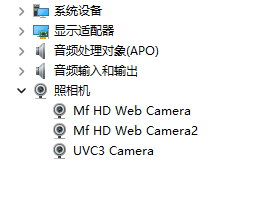
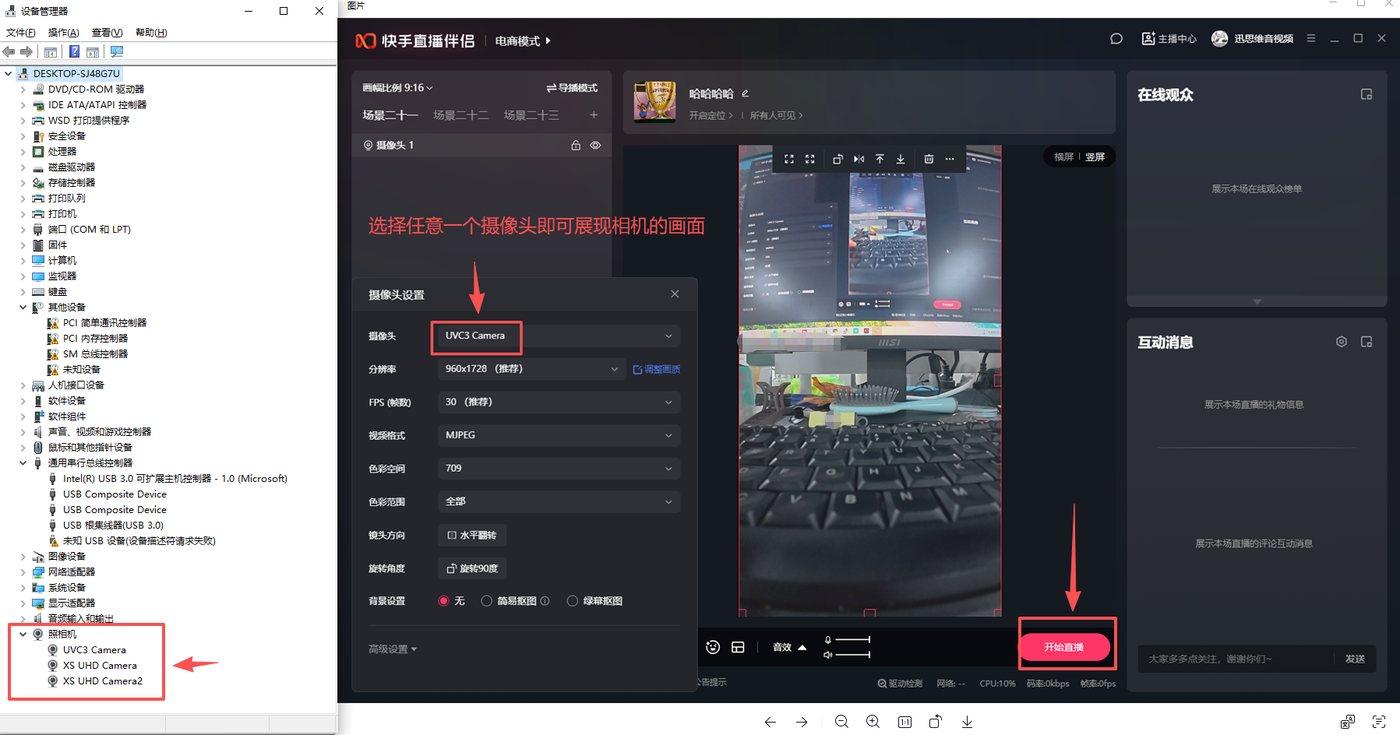
Connect the UVC pusher with a network cable, connect the USB cable to the computer and the device, and check whether three cameras appear in the computer device manager (three cameras means that three platforms can broadcast live at the same time). If they appear, the connection is successful; if not, the connection has failed and you need to unplug and reconnect.
3. Pushing Streams from the Camera to the UVC Live Streaming Device
The tutorial uses a DJI camera as an example
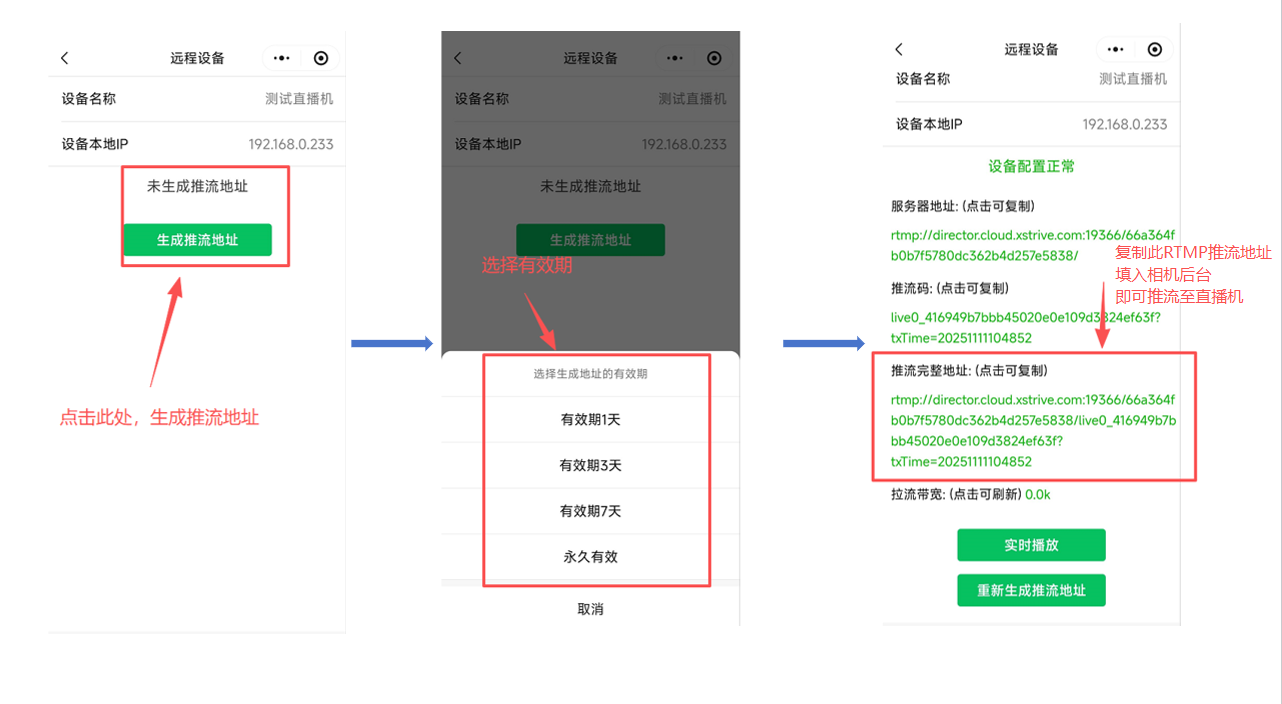
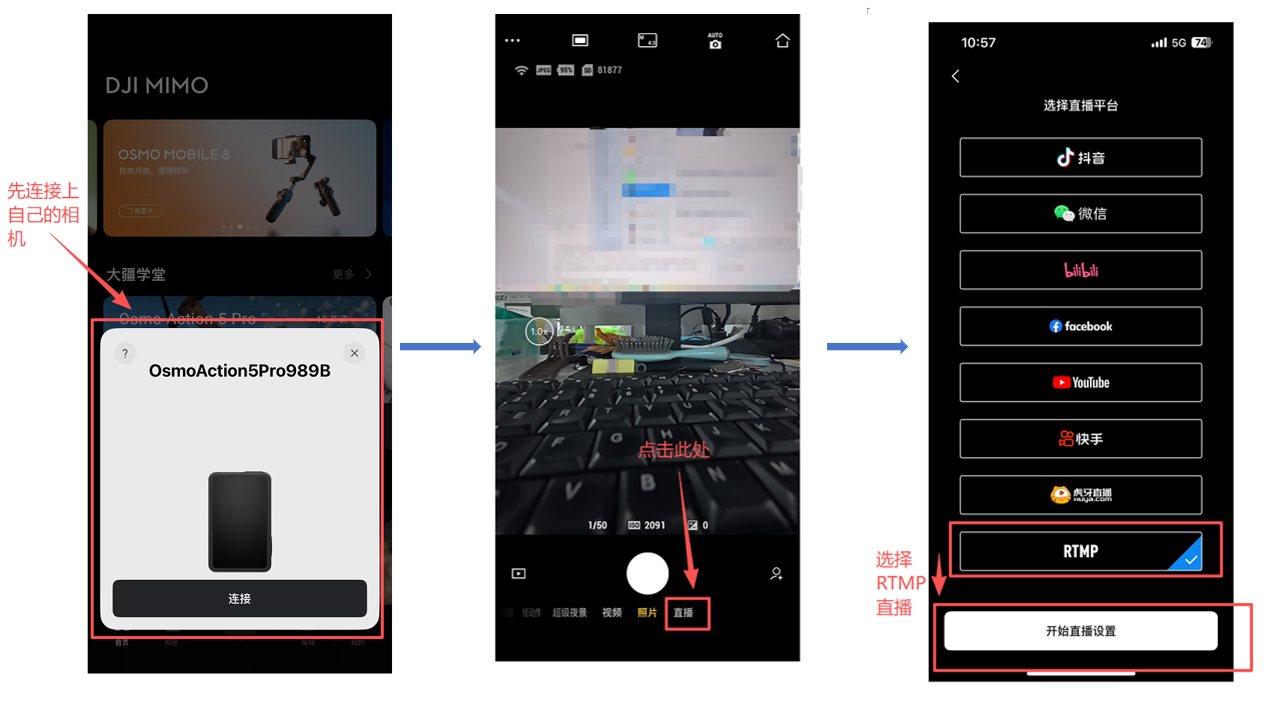
The operation flow is as follows: first obtain the RTMP push address, configure it in the camera backend, and finally start the live broadcast through the live streaming companion tool.
3.1 Obtaining the RTMP Push Address
Scan the QR code below to enter the XSTRIVE device management mini program

After logging in, follow the steps below:
Add the device to the WeChat mini program
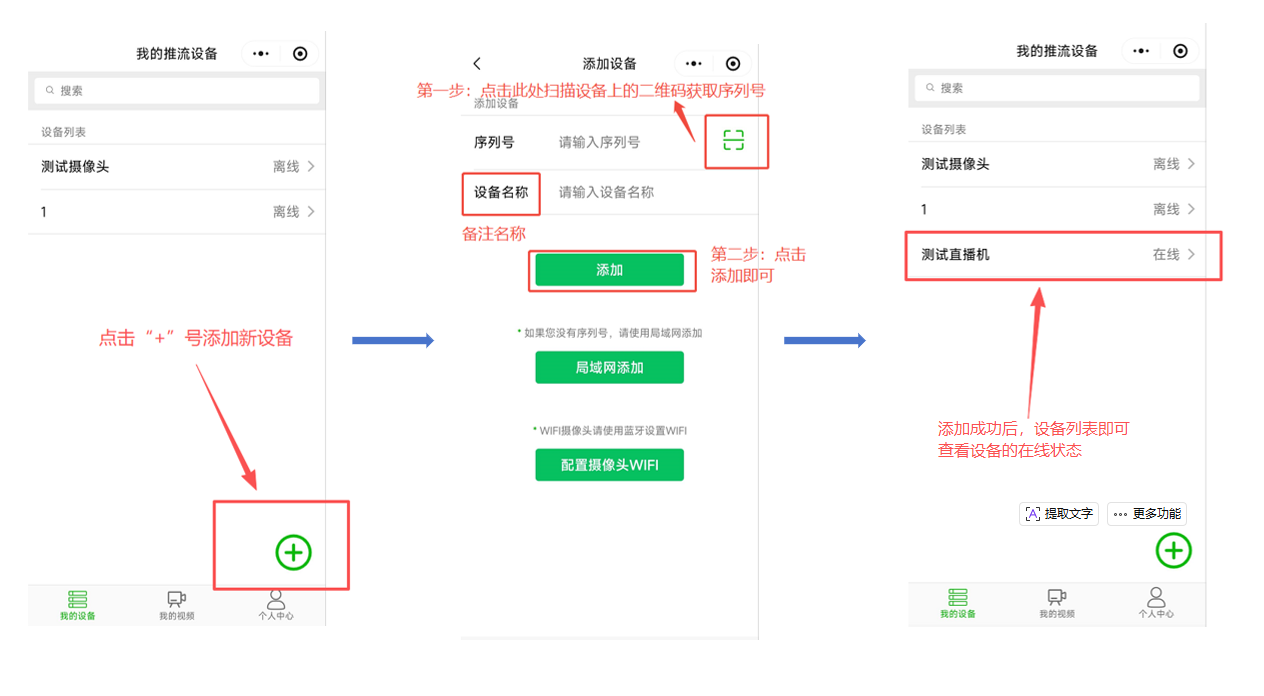
Obtain the RTMP push address
3.2 Operations Inside the DJI Camera APP
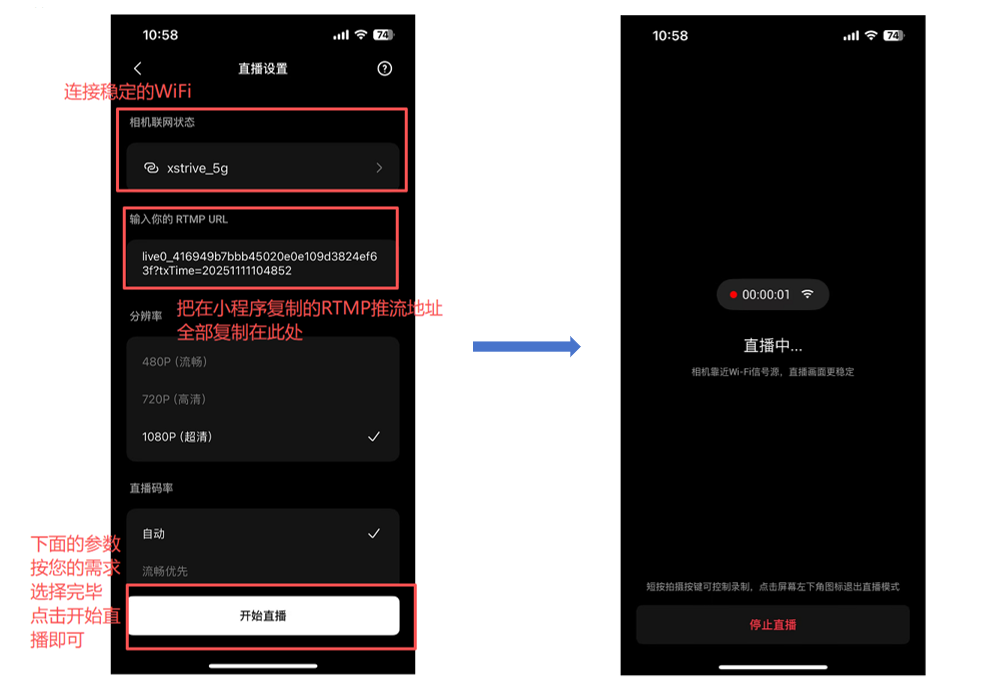
3.3 The live streaming companion operations are as follows:
Device FAQ:
-
Unable to stream, no video image
- If the camera cannot be found when selecting live streaming, you can try reconnecting the device power switch and reconnecting
- If the device connection shows that everything is normal, the live streaming software can select the camera, but the live image still cannot be displayed, you can uninstall the camera program in the device management assistant, then restart the computer and reconnect
-
No sound in the live image
- Check the live streaming software Settings -- Sound -- Microphone; you must select the echo cancellation microphone (XS Mic Camera) (the USB microphone simulated by UVC)
And open Settings -- Privacy -- Microphone on the computer --- allow apps to access your microphone
- Check the live streaming software Settings -- Sound -- Microphone; you must select the echo cancellation microphone (XS Mic Camera) (the USB microphone simulated by UVC)