Home / Docs Center / Device User Guides / 3rd-Generation UVC User Guide
3rd-Generation UVC User Guide
Project: Device User Guide | page_id: 1113
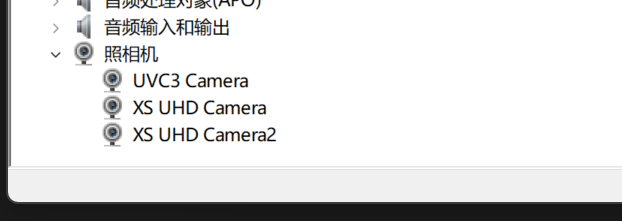
- Connect the UVC streamer to the network with a network cable, connect the USB cable to the computer, and connect the Type-C to the device. Check whether three cameras appear in the Device Manager of the computer (three cameras means three platforms can stream at the same time). If they appear, the connection is successful; if not, the connection failed and you need to unplug and reconnect. (The USB flash drive can support exfat and fat32 formats, but the exfat format is recommended, and make sure the videos in the USB flash drive do not exceed 1080p resolution)
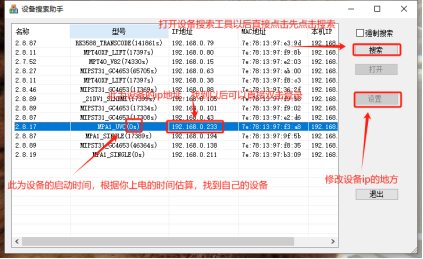
- Open the device search tool. Device search tool download address: doc-13.html
After the device is found, first check the IP address of your computer: press Win+R, enter cmd, press Enter, and after entering, type ipconfig to see what your IP address is, then change it to the same network segment in the settings of the device search tool according to your IP address
- Besides entering through the Device Search Assistant, you can also enter the configuration backend through WiFi. Turn on the WiFi of your phone and find the WiFi name starting with xs_. If it prompts that the current WiFi is unavailable, please click Save to connect, and then enter 192.168.11.1 in the browser to enter the management backend
- After entering, the account and password are both admin
- Enter the configuration backend (before starting the live stream, first close channel 2, otherwise it will be very laggy; wait until the video is stable, then open channel 2)
Channel 1 is the USB flash drive channel. In the search of channel 1 there is a video file search; select the video you want to stream and click Save to channel 1
Channel 2 is the external camera channel. Modify the IP address of the external camera according to your own IP address, and change the default 192.168.10.1
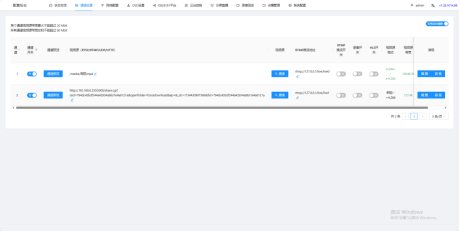
- The functions of the 3 interfaces in the search
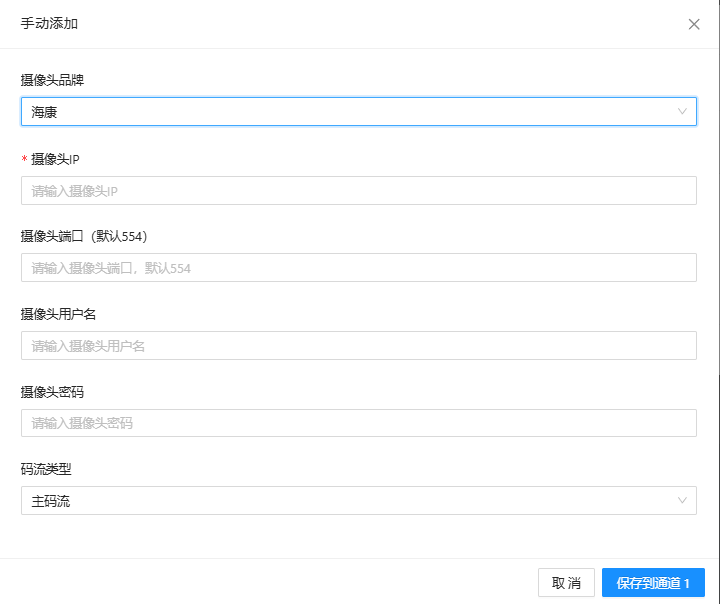
First: ONVIF device search. Generally speaking, if you only stream the videos in the USB flash drive, you don't need to care about it. But if you need to stream images other than the USB flash drive live streaming, you need to click "Cannot find it, click to try adding manually" below. The effect is as follows: fill in the corresponding information, then click Save to channel 1.
Second: video file search: these are the videos in the USB flash drive. To stream one, click Save to channel 1
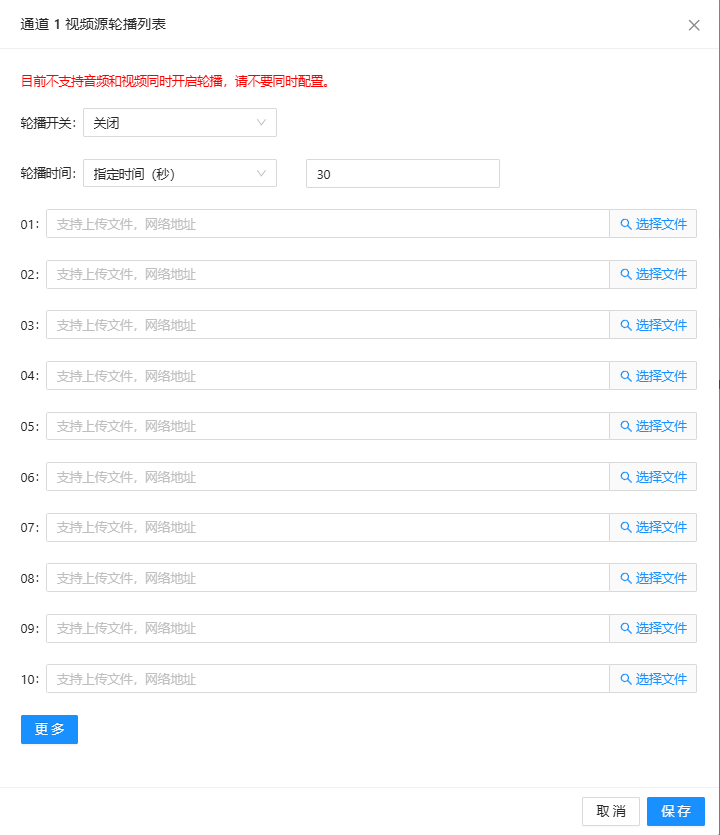
Finally: video source loop playback list: turn on the loop playback switch and set the loop playback time according to your needs. 01 is the first one to be played, and so on. Click Select File, select the video you need, and then click Save (you can also put a stream push address)
- Problem Description
- Problem: The video placed in the USB flash drive cannot be found in the video file search Answer: First make sure the USB flash drive is in exfat or fat32 format, and then make sure the resolution of the video in the USB flash drive is less than 1080p. If both are confirmed and it still does not work, unplug and reinsert the USB flash drive
- Problem: Why is there no image in the Douyin live stream? Answer: For Douyin live streaming you need to change the resolution to 960*1728 in the management backend
- Problem: What should I do if I want to connect another camera through the UVC live streaming box Answer: You can directly import the push address of the camera; the video loop playback setting can also be used for cameras
- Problem: What should I do if there is snow noise in the live image? Answer: You can change UDP to TCP in the advanced settings
Didn't find what you need?Contact us,Talk to our engineers directly.